
The Infamous Jupyterlab Among Data Scientist and STEM Engineer
Jupyter lab is an interactive IDE (integrated development environment) that very popular among the data scientist as it could visualize the code step by step in engineering document way. Despite that jupyter lab support dozens programming languages such as ruby / iruby or nodejs (ijavascript), the main usage of jupyterlab is for python data computation works.
Generally its recommended to isolate jupyterlab environment from other python projects as it might causing dependencies issue with other python project. There are two way to achive complete isolation of jupyterlab from its surroundings.
- isolate through conda environments
- isolate through python virtual environment.
1st option is the best choice as the python runtime can maintained differently between conda project. Unline conda, python virtual environment (venv), can’t maintain more than one python version.
— Hence, conda is far better than python environment.
Note: conda is free unless the organization has more than 200 employees or contractors.
Isolating jupyterlab on python virtual environment
Eventhough conda is the recommended python environment management, python venv is good at specific case which is production environment where resource (CPU, RAM, Disk, I/O) are tight and heavily optimized to ensure the server stability as it wont create “bloated” various python packages and runtime.
Creating Python Virtual environment and install jupyter-lab
create python virtual environment
python venv -m jupyter-lab-environment
activate the virtual environment (ensure the cli is pointed to the correct directory file where the virtual environment files is stored)
activate venv on linux OS or mac OS
source ./bin/activate
activate venv on windows OS (command prompt)
venv\Scripts\activate
activate venv on windows OS (Powershell)
.\venv\Scripts\Activate.ps1
install jupyter lab
pip install jupyterlab
Run jupyterlab
Because the jupyterlab is installed under python virtual environment, the first step is to activate the python environment
source ./bin/activate
check if any existing jupyterlab instances is still running on the background
ps -ax | grep "jupyter"
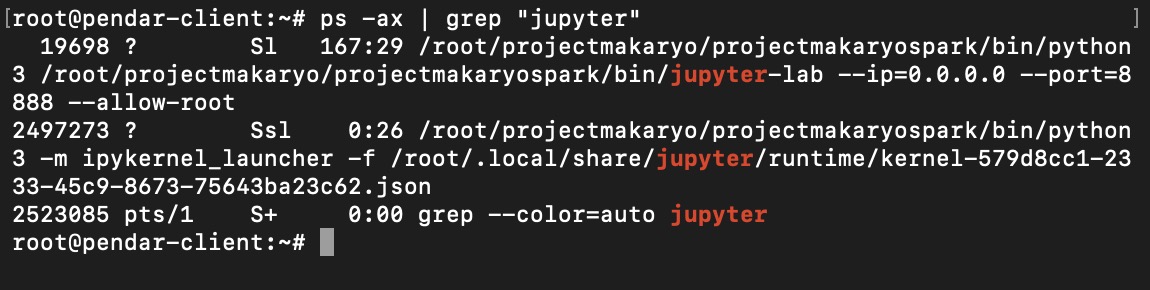 One jupyterlab instances still active and running
as per above images, there is jupyterlab instances that still active (PID=19698).
execute following command to kill the jupyterlab instances
kill -9 19698
then run the jupyter lab using following command
jupyter lab
wait until the startup process is completed
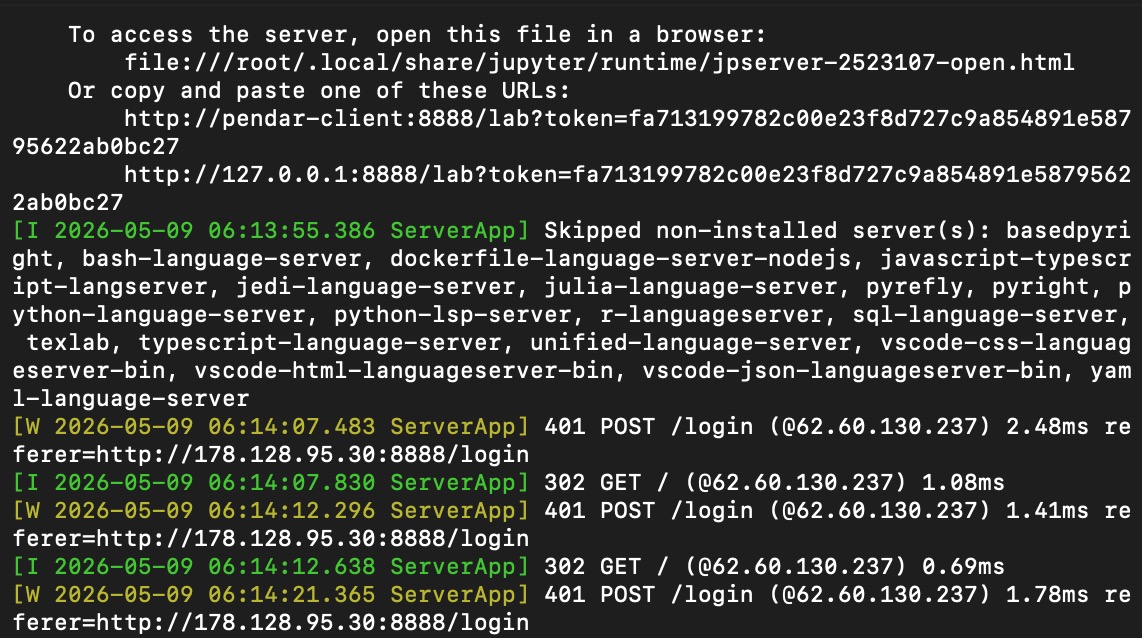 Jupyterlab is up and running on port 8888
Run jupyterlab on background
leaving the jupyterlab on the background is neccesary when those notebook need to be active 24/7. Use following command to schedule the execution via cron
/root/projectmakaryo/projectmakaryospark/bin/python3 /root/projectmakaryo/projectmakaryospark/bin/jupyter-lab --ip=0.0.0.0 --port=8888 --allow-root
or it can also be done using nohup
nohup /root/projectmakaryo/projectmakaryospark/bin/python3 \
/root/projectmakaryo/projectmakaryospark/bin/jupyter-lab \
--ip=0.0.0.0 --port=8888 --allow-root \
> /dev/null 2>&1 &
replace the diretory path with your python virtual environment folder.
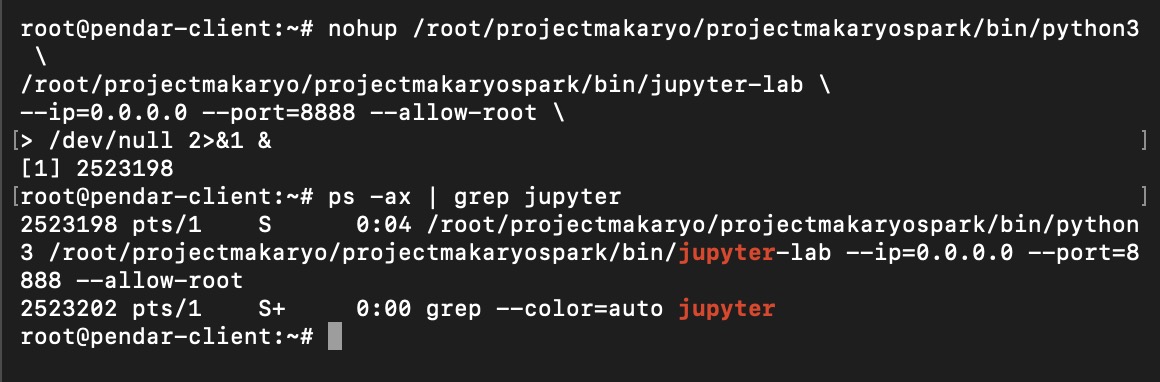 Jupyterlab is now running on background via nohup command
note: python virtual environment can’t be activated through source command. Hence, the jupyterlab binary need to be executed from the python virtual environment binary.
now the jupyterlab can be accessed through browser by accessing the server ip with port 8888
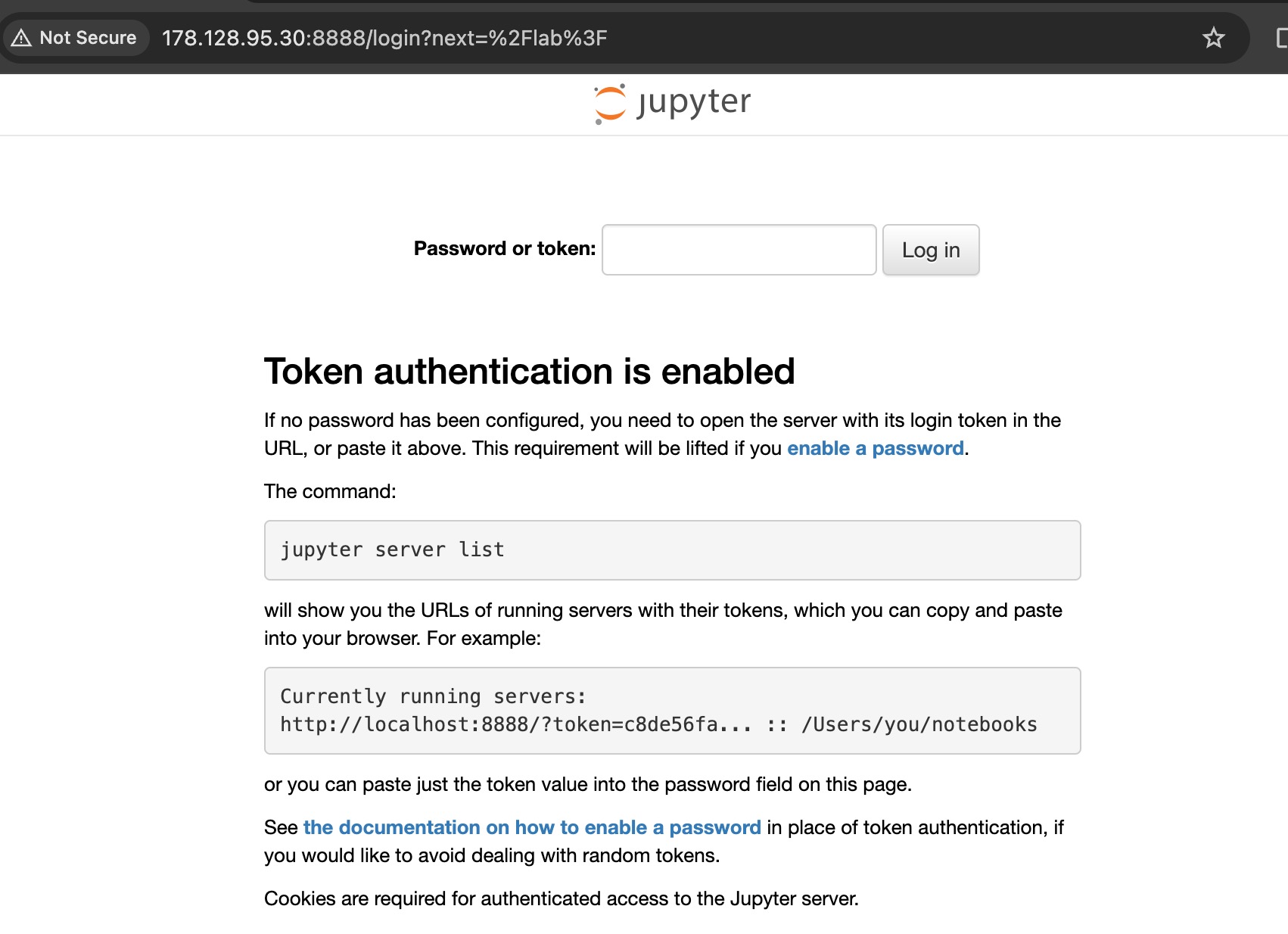 Jupyterlab can be accessed through browser
do not forget to grab the token from the cli response when executing command
Administrative Command to manage jupyter lab
below are some of the useful jupyter lab cli command for administrative task
obtain the current jupyterlab instances token(in case your forgot)
jupyter server list