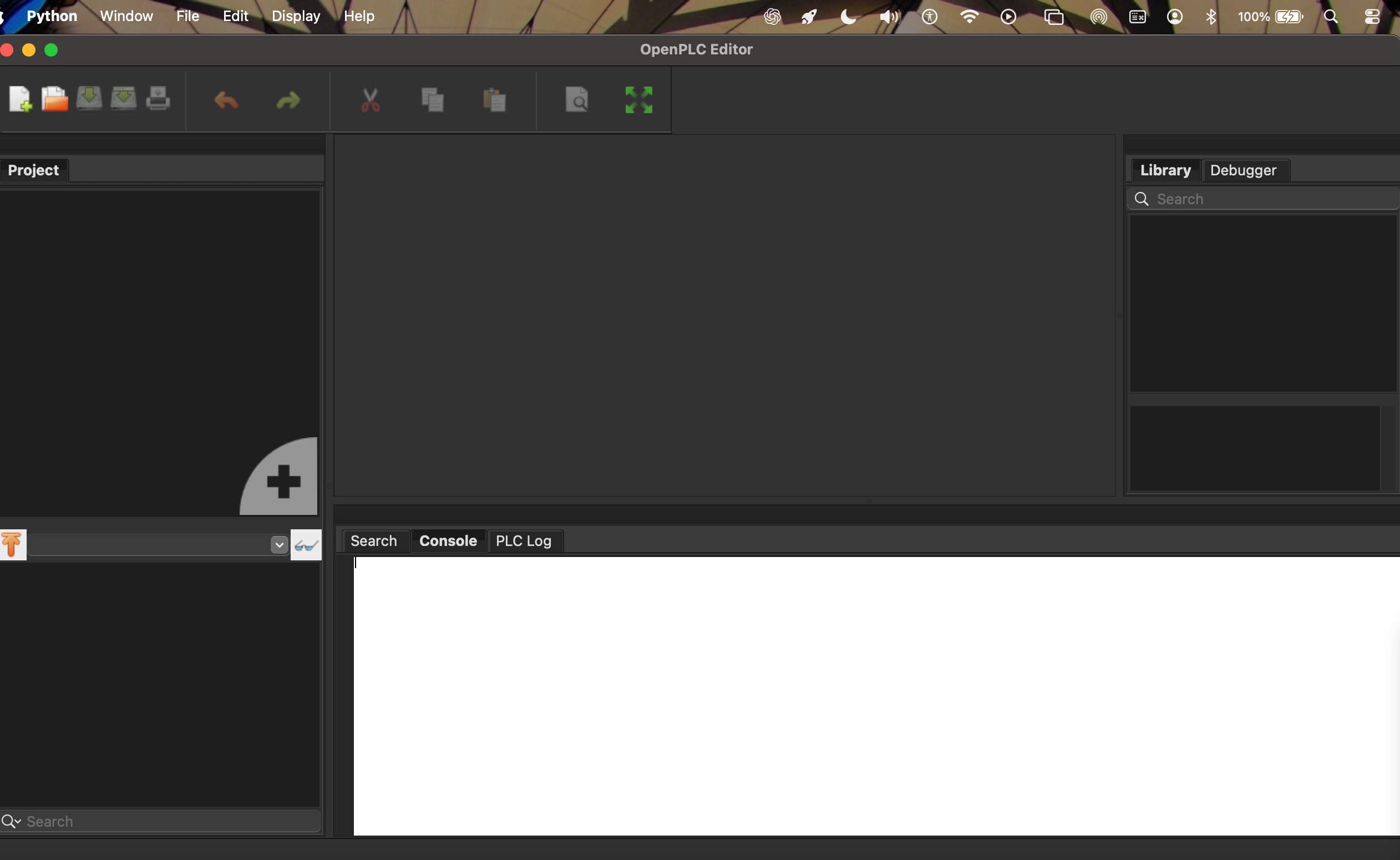
OpenPLC is an integrated PLC (Programmable Logic Controller) development tools to program (code), execute and execute the PLC script or logic without the needs of actual PLC hardware.
There are several PLC (virtual) integrated development tools available on the market. One of the popular one and already comply with IEC 61131-3 (PLC international standard) is openPLC by Autonomy.
How to Install OpenPLC on Mac OS
below are steps to install openPLC on Mac OS operating system
note: the same installer can be used on both intel based Mac OS or apple arm based mac OSX
Download openPLC
in order to get the download links for openPLC, kindly go to openPLC official website by accessing following url
https://autonomylogic.com/download
find the right openPLC software distribution. On this case is Mac OS
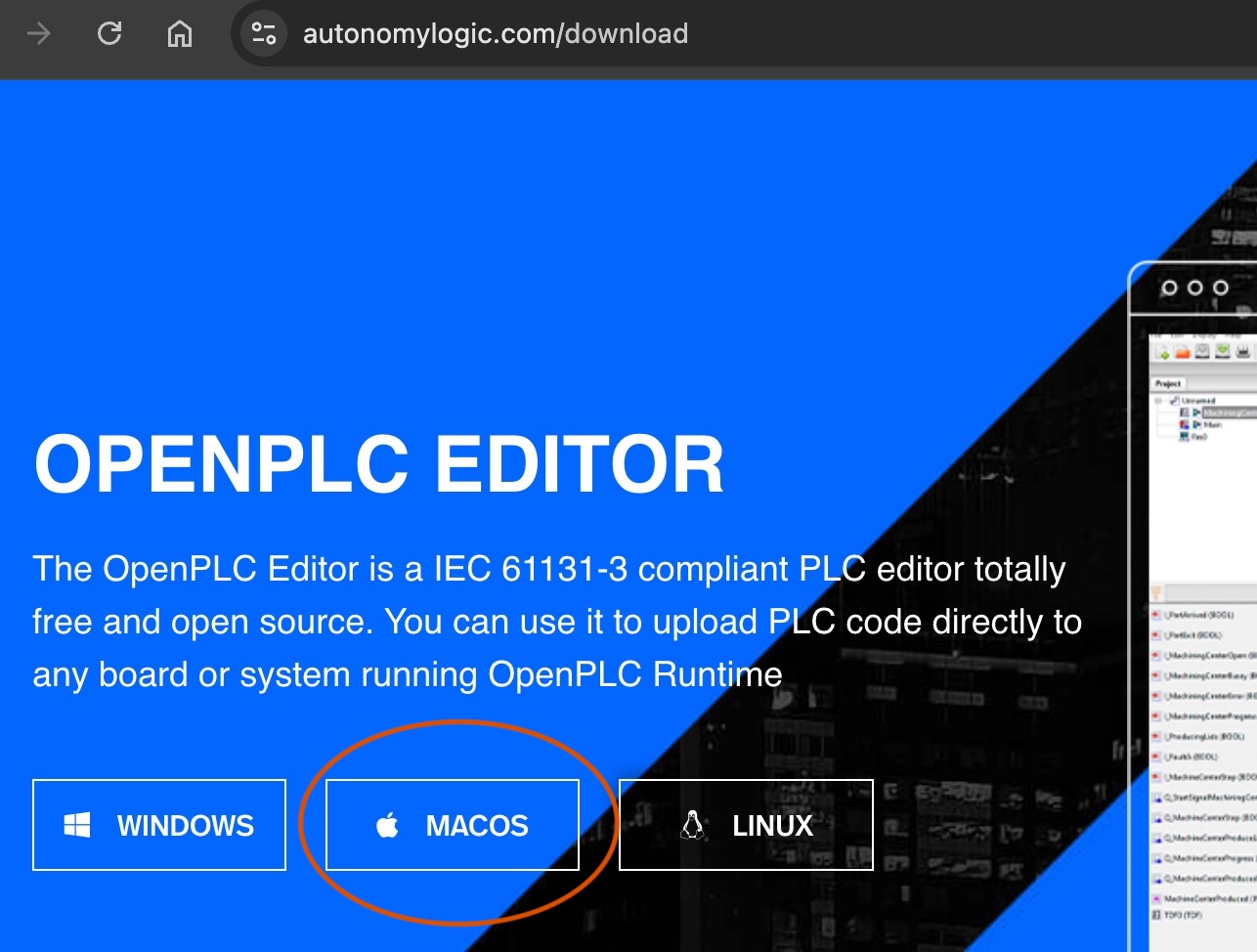 choose the mac os distribution
copy the download links which available on the “just download” text
https://autonomylogic.com/wp-content/uploads/files/OpenPLC%20Editor%20for%20macOS.zip
click on above links and wait until the download process is completed.
note: openPLC installer size is about +- 210 mb, it might take a while.
validate the sha-1 checksum, ensure the downloaded files has same hash value, otherwise it is corrupted and had to re-download.
use following command to check sha-1 on mac
shasum -a 1 openplc-installer.zip
ensure the response is same with following sha-1 value provided by official openPLC website
c757784b4424404b9769e7b95fd1b5efa68d334e
Extract the openPLC installer
Extract the zip on any folder. after the extraction is completed, there will be two files inside the zip installer
- openPLC editor app
- readme
it is recommended to move the app file to application folder to ensure the openplc apps can acess and utilize the full capability of the operating system
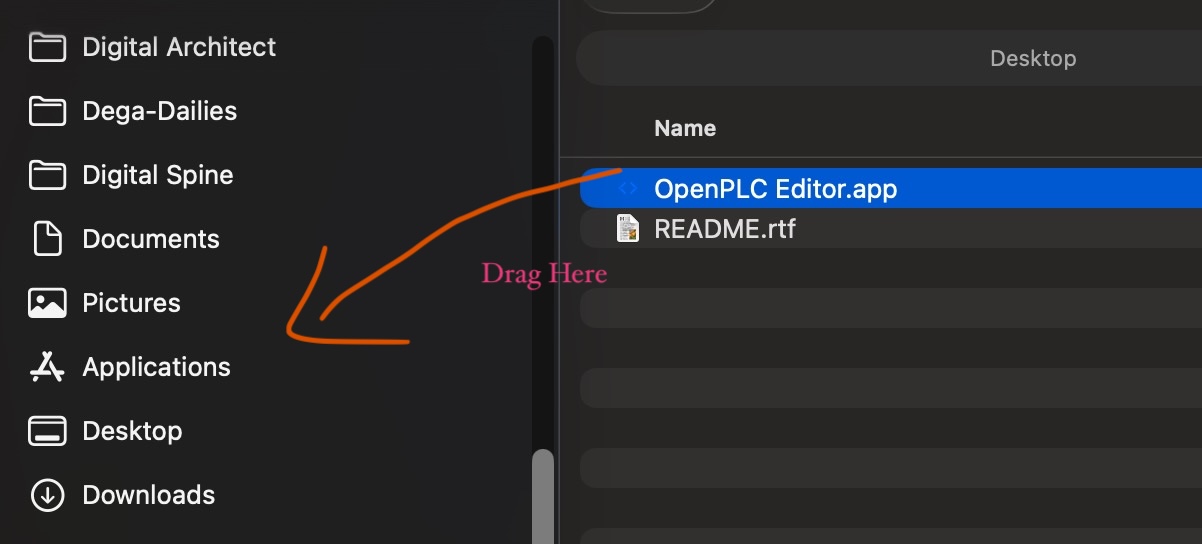 drag the openPLC.app file to the applications
Run the open PLC app
double click the openPLC.app file, if there is warning pop up window shown following message “Apple could not verify… etc etc” mean, we need to allow the operating system to allow openplc app.
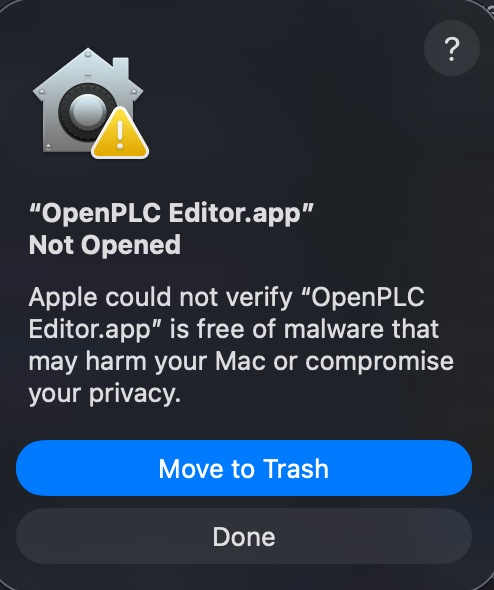 openplc app is blocked by mac os due to security reasons
click done on the pop up window
go to system settings and search for security, then click security settings menu.
scroll down and click “open anyway” button spefically for the OpenPLC Editor.app
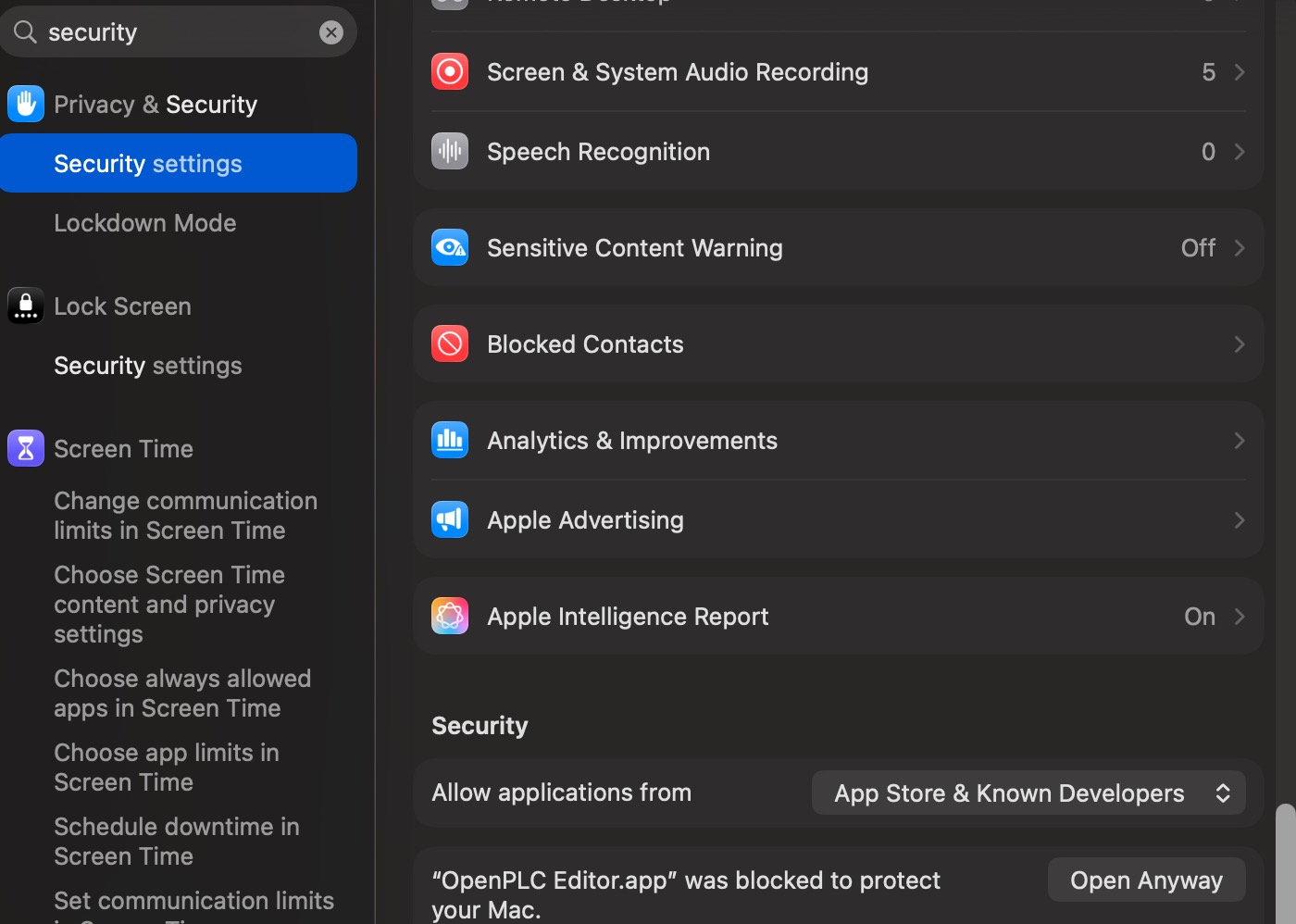 click open anyway button to allow the openplc to be ran by mac os
click open anyway and input your mac password.

wait until the splash screen is dissapear and its done!. the openPLC IDE (integrated desktop environment) shown be ready to be used