
Data Ingestion role During Data Migration.
Data migration is one of the software development activity within the whole SDLC that require insane amount of time specifically for data preparation & data ingestion.
Before a data can be ingested to the target system, it often to be loaded into staging databases as raw data via data ingestion pipeline. Then the data will be cleansed, transformed and finally loaded into target system.
— We could say that data ingestion is the most recurring activity on data migration project. Almost all stage/activity phase require data ingestion.
Both of raw data ingestion and final data ingestion to the target system can be done either using custom script (python, nodejs) or as simply as csv import through pgadmin depend on the scale of migration.
Custom script for data ingestion might be overkill for small to medium application that could be done just using GUI tools such as PGAdmin (incase the staging or target databases in postgreSQL) to the speed up the processes.
Steps to Import CSV data using PGAdmin for PostgreSQL
Below are the steps to import CSV into postgreSQL.
Download and Install pgAdmin.
pgAdmin is the official GUI (graphical user interface) based database management tools for postgreSQL that was developed by community and free to use.
— pgAdmin is the equivalent of mysql workbench database management tools for mariaDB or mysql databases.
Go to following links to download pgAdmin
https://www.pgadmin.org/download/
note: dont forget choose the correct operating system.
once the download process done, run and follow the installer wizard.
Create Schema
Before pgAdmin can import csv into target table, the schema must be physically available.
DDL (data definition language) need be created based on the csv header.
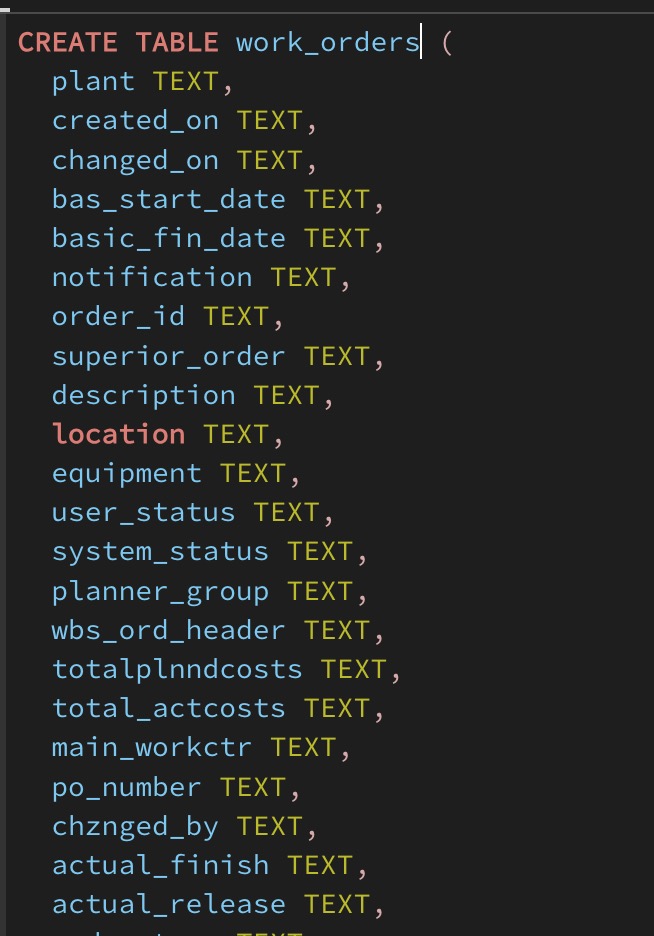
Execute the DDL to generate the table.
it is recommended to utilize AI to generate the DDL. Nowdays any LLM like gpt, grox or gemini can convert csv header into DDL in form of sql queries quickly.
Import to the CSV
right click on the target database schema/table and choose import/export as shown in image below
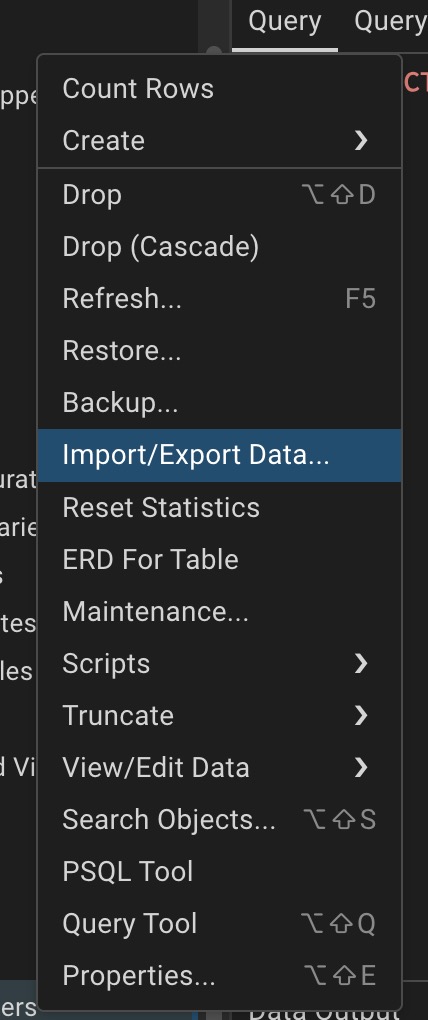 click import / export menu on the popup
popup window will shown and giving two action options which are export and import.
Choose import to import csv data into existing postgresql database schema/table or choose export to generate csv from existing database schema/table in csv format as well.
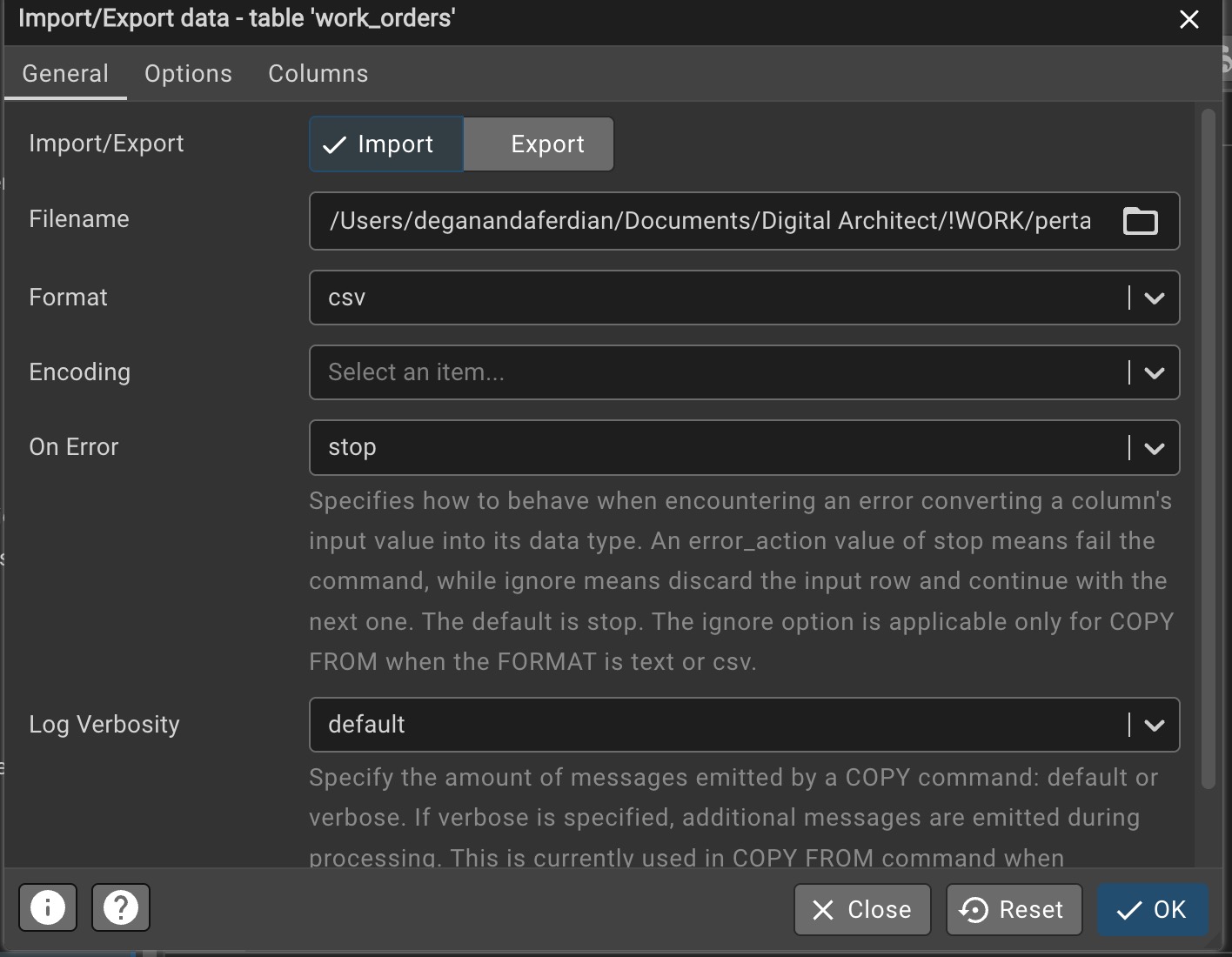 pgadmin are capable of exporting and imporing data from postgresql through GUI
then on the on the import tab window, choose the csv file
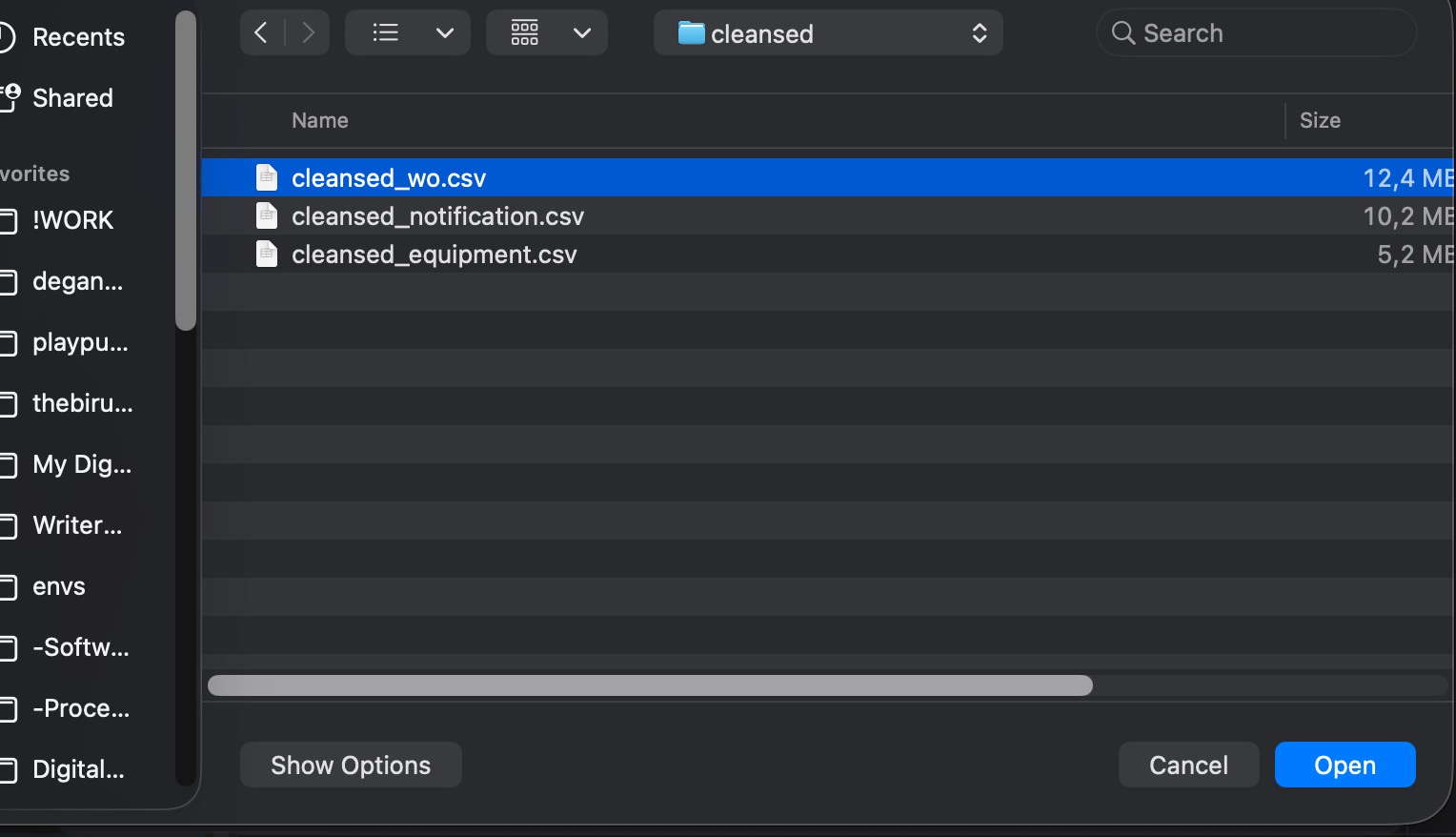 choose the csv that would be to be imported on the target schema/table
by default, postgresql recognize comma “,” as the column delimited on the csv files. Double check the csv delimiter before proceed on importing the csv data into postgresql database schema/table.
click ok, if there is no issue on the csv encoding or format, a popup message will shown to inform that the importing process has been started
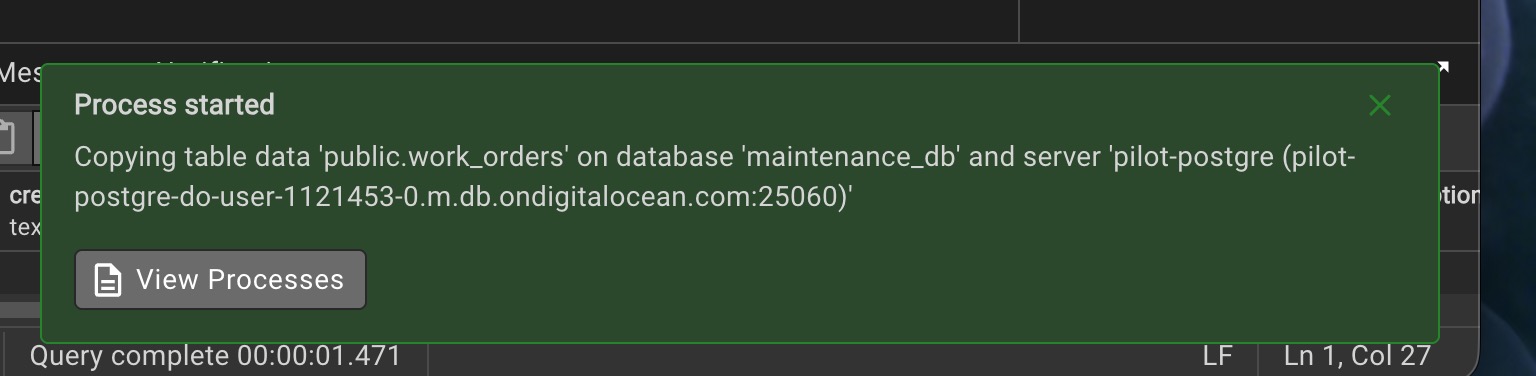 import process is started indicating there is no format issue on the csv files
wait until the process is completed.
check the process window tab to see the import progress.
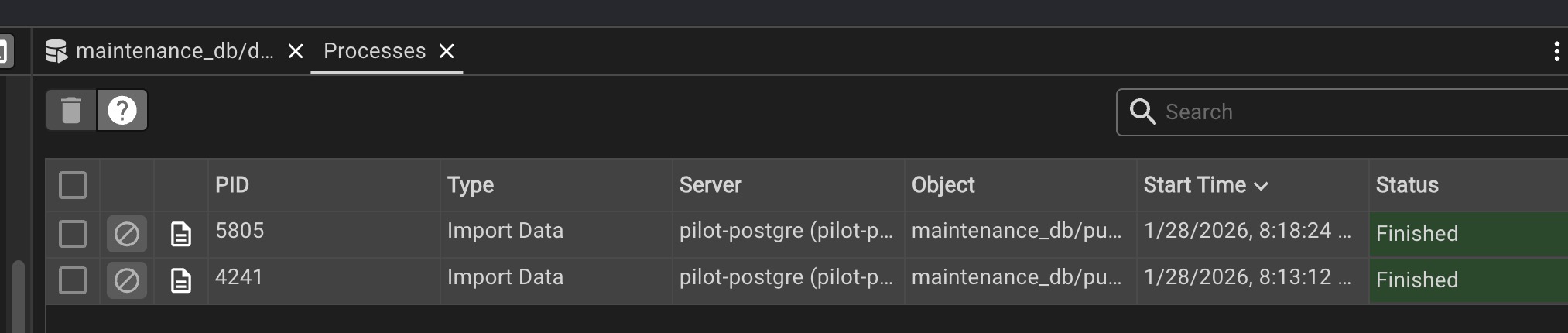 pgadmin has feature to monitor the export or import progress. super handy