
Project Initialization
Initializing project & git
npm init
git init
(option) exclude node_modules from being watched by git
create .gitignore files
nano .gitignore
add following lines
node_modules
install mandatory vanilla reactjs package including react and react-dom
npm install react react-dom
ensure the react and react-dom package is successfully added to the node_modules and package.json by executing following command
ls -la | grep react
both of package should appear on the folder listings
drwxr-xr-x  13 deganandaferdian  staff   416 Dec 21 11:03 react
drwxr-xr-x  24 deganandaferdian  staff   768 Dec 21 11:03 react-dom
Initialize React
| No | Category | Stack |
|---|---|---|
| 1 | FE Libraries | React JS |
| 2 | Bundler | Esbuild |
Project will be based on vanilla/pure react (non framework) without JSX, react javascript version (not ts) and esbuild as the bundler.
the project entry point will be aclled as app.js
mkdir app.js
then import core react API and react DOM (document object model) which consist of module including component, hook, state and JSX.
import { createRoot } from 'react-dom/client'
react DOM will be responsible for bridging between react API to the HTML DOM and “client” is the type of react api used, in this case is client as it will be ran on top of browser.
then createRoot is a function to let react inject, retrieve and manipulate with the HTML DOM.
note:
kindly disable the browser cache to ensure both of the js and css file are continuously updated when there is changes.
Layout
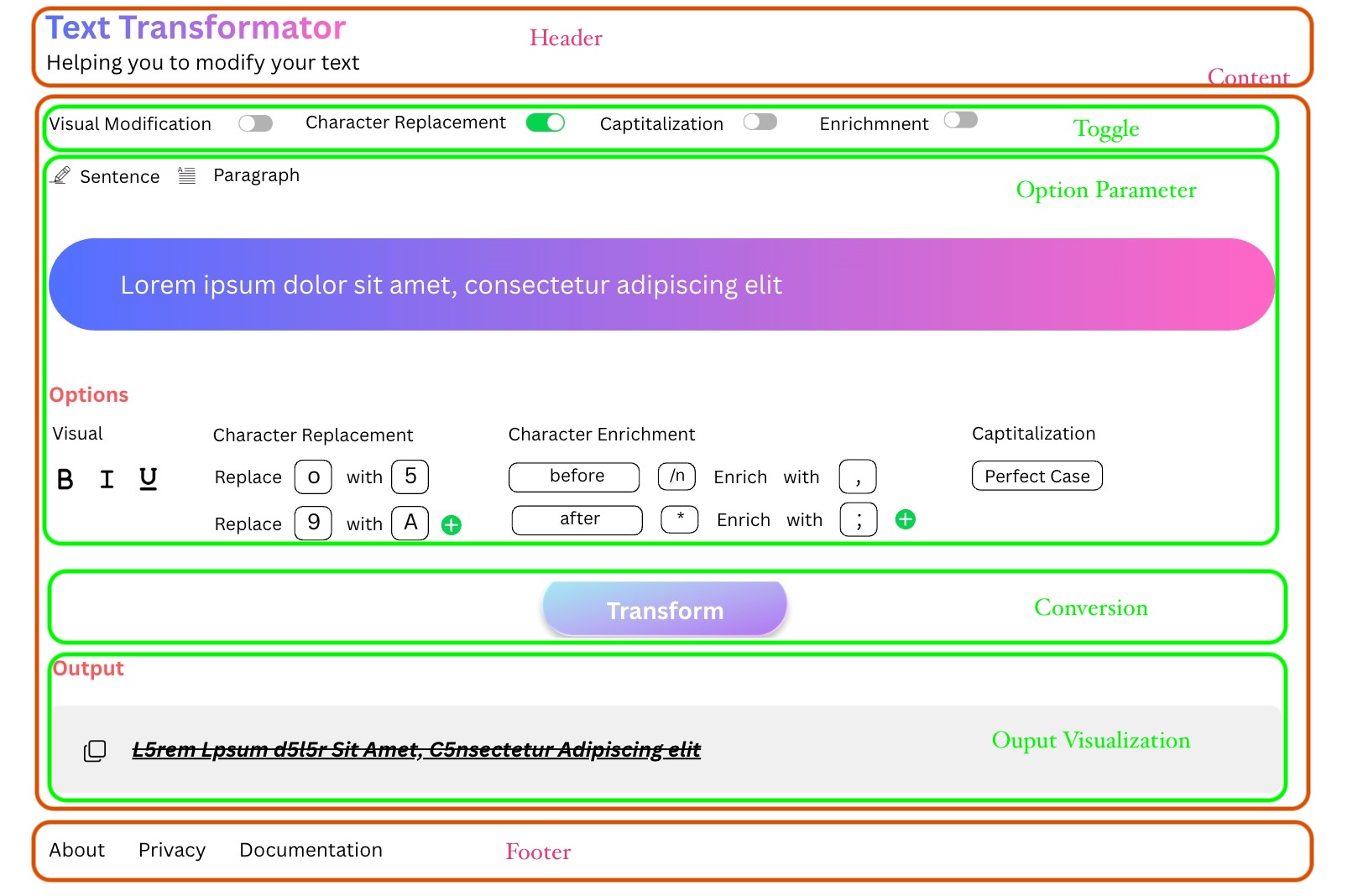 Text transformator tools proposed layout section
There will be three divison of the screen. Header part will render the tools name & description. Core transformation tools component from toggle, input text up untill the transformed text visualization will be rendered on the center part and last is footer to render some hyperlinks about the tools information.
note: There is no right and wrong during the section slicing process. it depends on the web developer preferences.
Create main divison
import { createRoot } from 'react-dom/client'

document.body.innerHTML = '<div id="main-container"></div>'

const mainContainer = createRoot(document.getElementById("main-container"));
mainContainer.render("main container of text transfer)
Integrate with Build Tools
by default, the browser will not understand and reoslve any dependencies described by react-dom/client module
the nodejs code will need to be compiled by build tools to resolve the dependencies and bundle it into browser-ready javascript files.
Build tools is one of functionality on javascript bundler tools. Many js bundler available on the market and most are free to use such as vite, esbuild, webpack and parcel.
For this project, lightweight js bundler will be used which is esbuild and also the text-transformer tools is pretty simple, nowhere near enterprise frontend channel (B2C/B2B). Hence, esbuild will be enough.
Install Esbuild
install the esbuild build tools
npm install esbuild --save-dev
with save-dev params, esbuild will only be installed and available during the development and testing build. It won’t be included on production build.
(alternative) use -D parameter to ensure esbuild cli (command line interface) can be used anywhere (outside the project)
validate if esbuild installed properly
./node_modules/.bin/esbuild --version
it should return the esbuild respective version (eg: 0.27.2)
Compile with esbuild
execute following command to compile the app.js which use react and react-dom API into browser-ready javascript file.
npx esbuild app.js --bundle --outfile=app.dist.js
note: only use above command for development or testing purposes as esbuild will still log error files.
for production use, add –minify and –define:process.env.NODE_ENV=’“production” strip all error logging process and minify the javascript source code.
Render on browser
now that compiled and bundled version of the react code has been created meaning all the react/react-dom dependencies on the nodejs side has been resolved, the app.dist.js can directly be consumed from the browser.
create index.html file
mkdir index.html
load the compiled app.dist.js
<!DOCTYPE html>
<html>
<head>
    <meta charset="utf-8" />
    <title>Text Transformer</title>
</head>
<body>
    <div id="text-transformator"">
    <script src="app.dist.js"></script>
</body>
</html>
open the index.html on browser by simply dragging the index.html to the brwoser
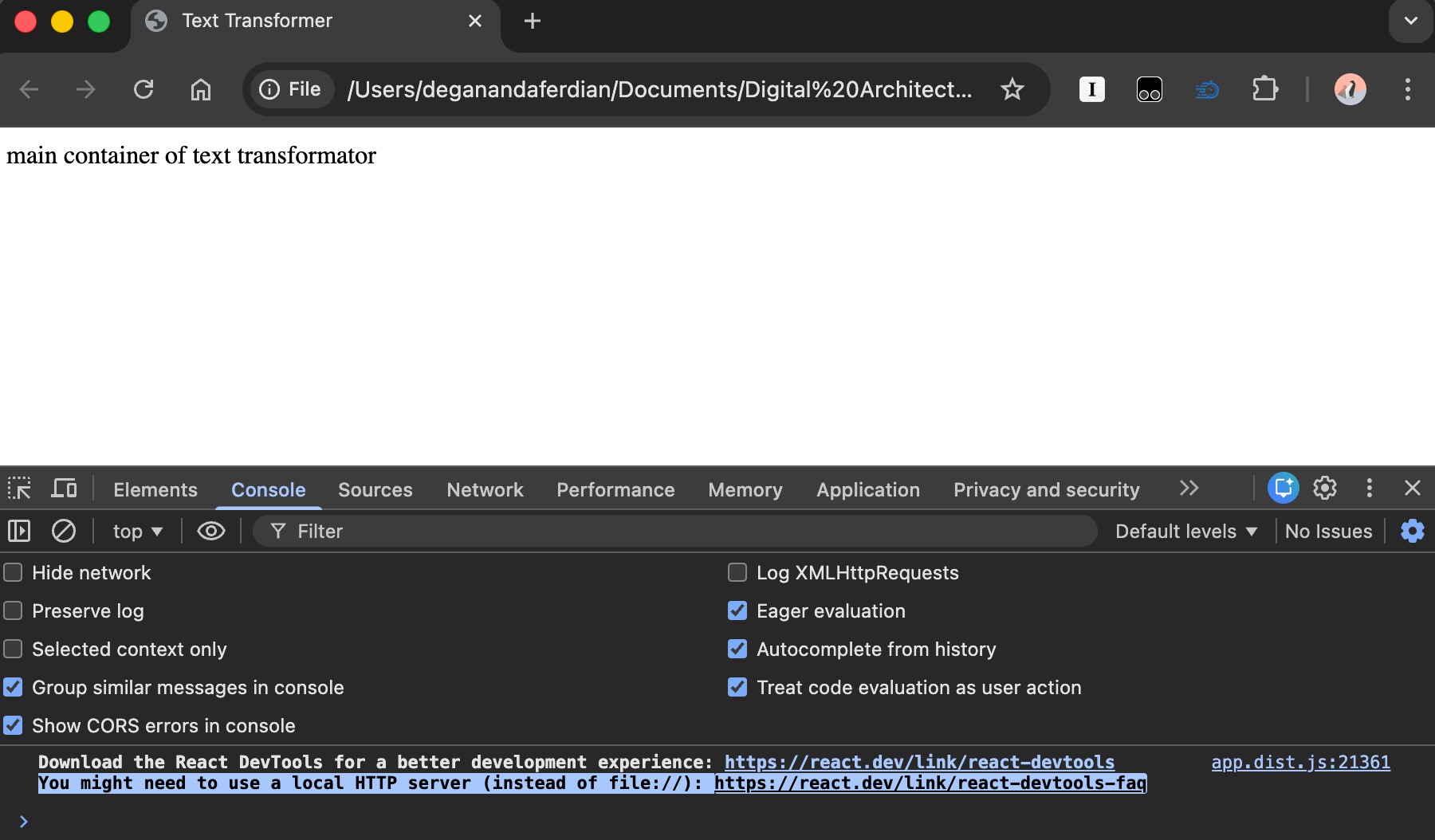 Compiled react js into browser-ready script and loaded directly through file browser
alternatively, it is recommended to use local web server to enable react dev tools.
almost every production grade webserver available on the market are compatible with react from nginx and apache. However, for development purposes, simple web server from python is sufficient to load the react devtools
execute following command to start python web server (assuming python is symlink for python3)
python -m http.server
otherwise run using python3
python3 -m http.server
now open it on the browser by accessing this url
localhost
react will successfully rendered and react devtools issue wont be appear anymore on the browser console.
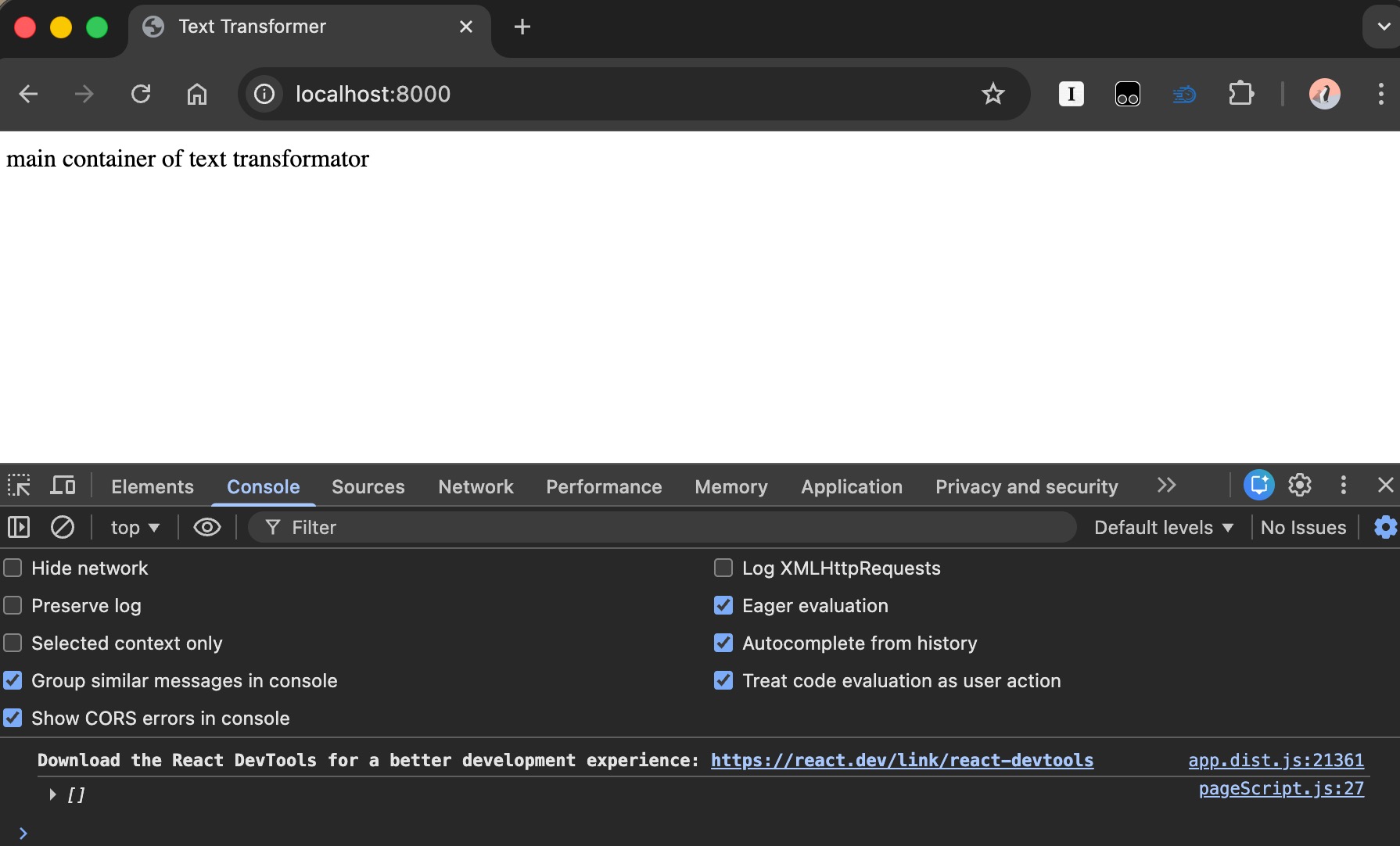 Run compiled react js through esbuild using python web server
Structurizing the main web Layout using React Create Element
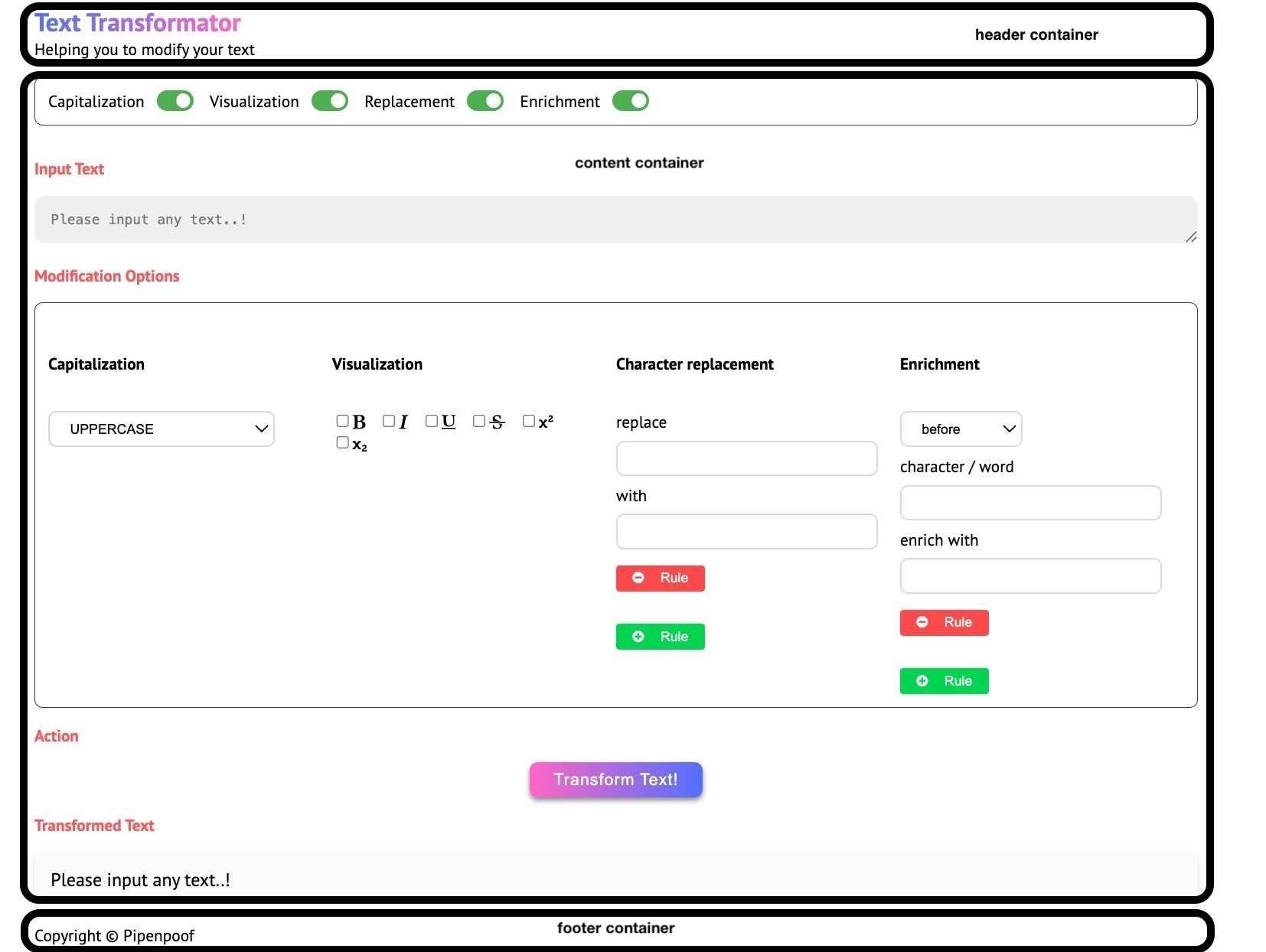 Actual section division based on the UI wireframe in HTML view
Below is the DOM skeleton section looks like
- (l1) main container
-- (l2) header container
--- header menu
-- (l2) content container
--- toggle
--- input text
--- option parameter & conversion button
--- visualization
-- (l2) footer
--- footer menu
— Each section will be represented by “div” element and will be writen as React.CreateElement
Inside of the section, there will be alot of react element because every single html syntax including (but no limited to) div, input, span, button, and textarea must be created using createElement function, otherwise it will just be treated as common html DOM and can’t interact with react state of useEffect.
the core layout is written under app.js
import { createRoot } from 'react-dom/client';
import { createElement } from 'react';

// element
import { HeaderMenu } from './header';
import { OutputVisualization } from './content';
import { FooterMenu } from './footer';

function Layout() {
    return createElement(
        'div',
        {
            id: "main-container"
        },
        createElement('div', { id: "header-container" }, HeaderMenu),
        createElement(
            'div',
            { id: "content-container" },
            createElement(OutputVisualization)
        ),
        createElement('div', { id: "footer-container" }, FooterMenu)
    )
}

const mainContainer = createRoot(document.getElementById("text-transformator"));
mainContainer.render(Layout())
each of the section (header,content and footer) are separated into three different react component files.
-rw-r--r--   1 deganandaferdian  staff      742 Jan 25 18:20 app.js
-rw-r--r--   1 deganandaferdian  staff    11791 Jan 24 22:31 content.js
-rw-r--r--   1 deganandaferdian  staff      538 Jan 24 10:57 footer.js
-rw-r--r--   1 deganandaferdian  staff      470 Dec 24 20:12 header.js
-rw-r--r--@  1 deganandaferdian  staff      396 Jan 25 18:25 index.html
Auto reload
At this stage, each time changes is made on one of the project files, re-compile is needed.
add –watch on the esbuild command
npx esbuild app.js --bundle --outfile=app.dist.js --watch=forever
then put it under scripts section on package json and chain it with python web server to chain both process.
chaining mean, python web server will be up and running while the esbuild watch over files changes.
complete package.json for javascript file auto watch by esbuild and run python web server
{
  "name": "text-transformator",
  "version": "1.0.0",
  "main": "app.js",
  "scripts": {
    "start": "esbuild app.js --bundle --outfile=app.dist.js --watch=forever & python -m http.server"
  },
  "author": "",
  "license": "ISC",
  "description": "",
  "dependencies": {
    "react": "^19.2.3",
    "react-dom": "^19.2.3"
  },
  "devDependencies": {
    "esbuild": "^0.27.2"
  }
}
execute the chained command
npm run start
it shoud return shown some log message which tell that the esbuild is actively monitor the changes and http server status on the console as shown below
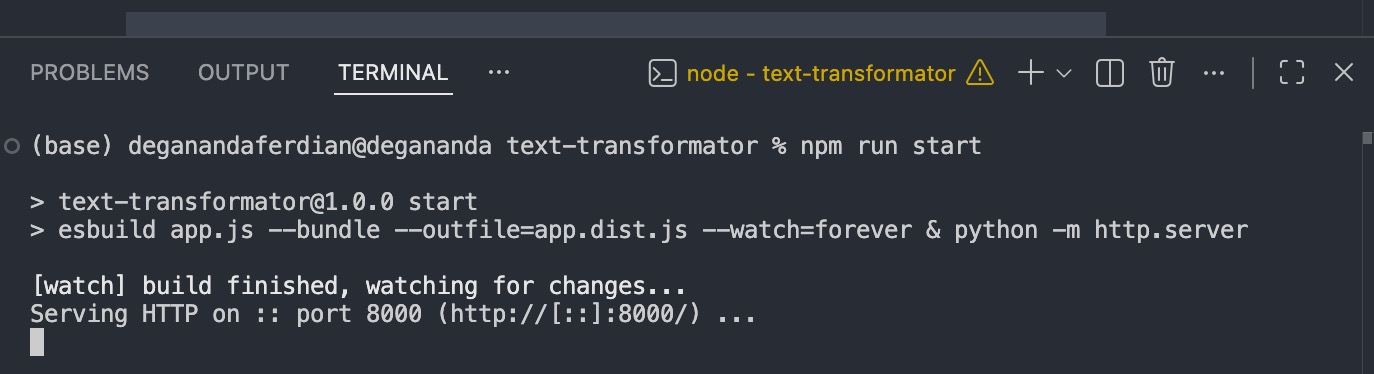 Now python web server is running together with esbuild watch process
Web Design: React Element & CSS Styling
React is a web-based frontend library, CSS and SASS are compatible with any react project.
create css file
mkdir style.css
import the css into html, by adding following syntax to the header
<link rel="stylesheet" href="./style.css">