
Big Data Computation is Enabled by Spark Cluster Parallel Processing
Spark cluster enable data engineer and scientist to processs huge amount of data (big data) because the computation is distributed into several spark worker on different baremetal. Normal pandas library can has limited ceiling based on the available memory/ram and CPU of the machine limit the size of data (few gbs) that can be offloaded into the dataframe while spark cluster can handle up to petabyte data due to the distributed computing nature.
Pandas dataframe reside on the local memory of the machine. In other hand, spark dataframe will be disributed across cluster of machines enabling parallel processing with massive scalability that can handle petabytes data.
Steps to execute remote spark jobs
Assuming the spark master and spark worker has been configured properly, below are the step by step to perform spark cluster remote execution from jupyter notebook within the same network.
Starting Spark Cluster
use following comamnd start spark master
/opt/spark/sbin/start-master.sh –host 10.130.0.4 –port 7077 –webui-port 8080
replace the host private ip with the actual spark master machine ip then verify whether the spark master is successfully started by checking both the UI and java virtual machine processs (JPS) command
 Starting spark master which as overall spark resource manager
check via JPS
jps
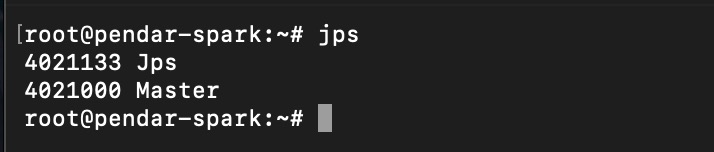 Check spark master status via JPS
it should return master, then access the UI on port 8080 via browser. If the spark master is only accessible through private network and VPN is available, it can still be accessed via internet using ssh tunnel.
ssh -L 8080:<spark master privateip>:8080 root@<spark master public ip>
replace the spark master private and spark master public ip
if spark master up and running, the UI should be accessible.
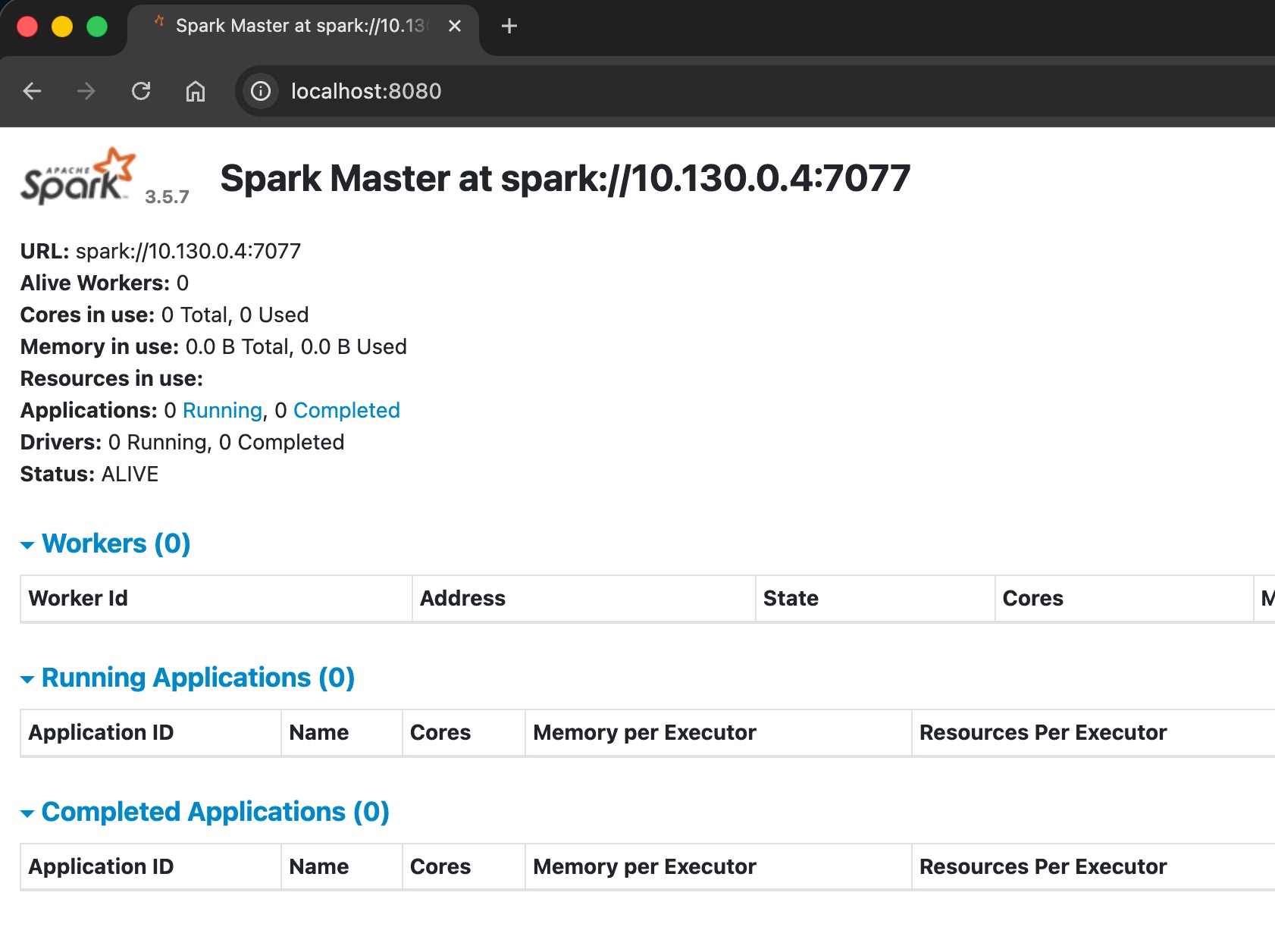 Spark webUI is accessible through port 8080
next step is to start spark worker, use following command:
/opt/spark/sbin/start-worker.sh spark://10.130.0.4:7077 -c 1 -m 1g
 Starting spark worker which repsonsible for the job execution
adjust the number of worker and the allocated memory. align it with the available CPU/memory of the server.
double check on the jps, it should show spark worker process spawned on the console.
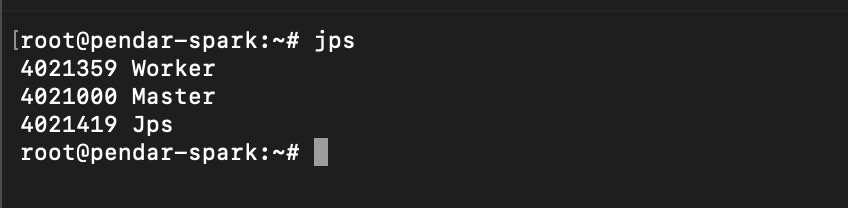 Check spark worker status on the jps
check the spark UI, the number of worker will should be increase to 1 (or depending on the number of worker parameters) and the worker id will be shown as well on the UI.
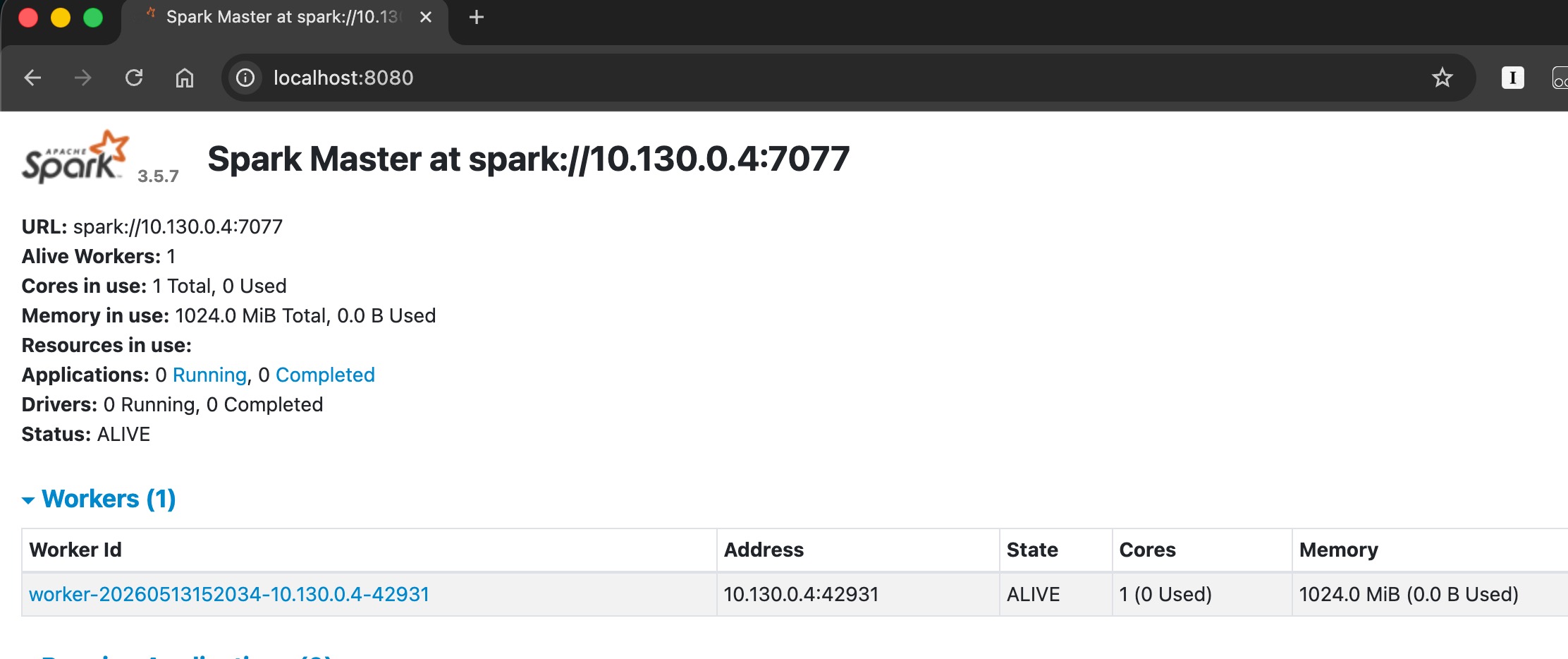 Recently spawned spark worker details is shown on the spark webui
below are the command to stop spark worker or spark master
stop both spark master and worker
/opt/spark/sbin/stop-all.sh
stop spark master only
/opt/spark/sbin/stop-master.sh
stop spark worker only
/opt/spark/sbin/stop-worker.sh
Test Spark Computation on Spark Shell
login to spark shell by executing following command
/opt/spark/bin/spark-shell --master spark://10.130.0.4:7077
replace 10.130.0.4 with the spark master private ip addresses then execute following spark command to generate ten random numbers
spark.range(10).show()
it should return 1…10 number in sequences
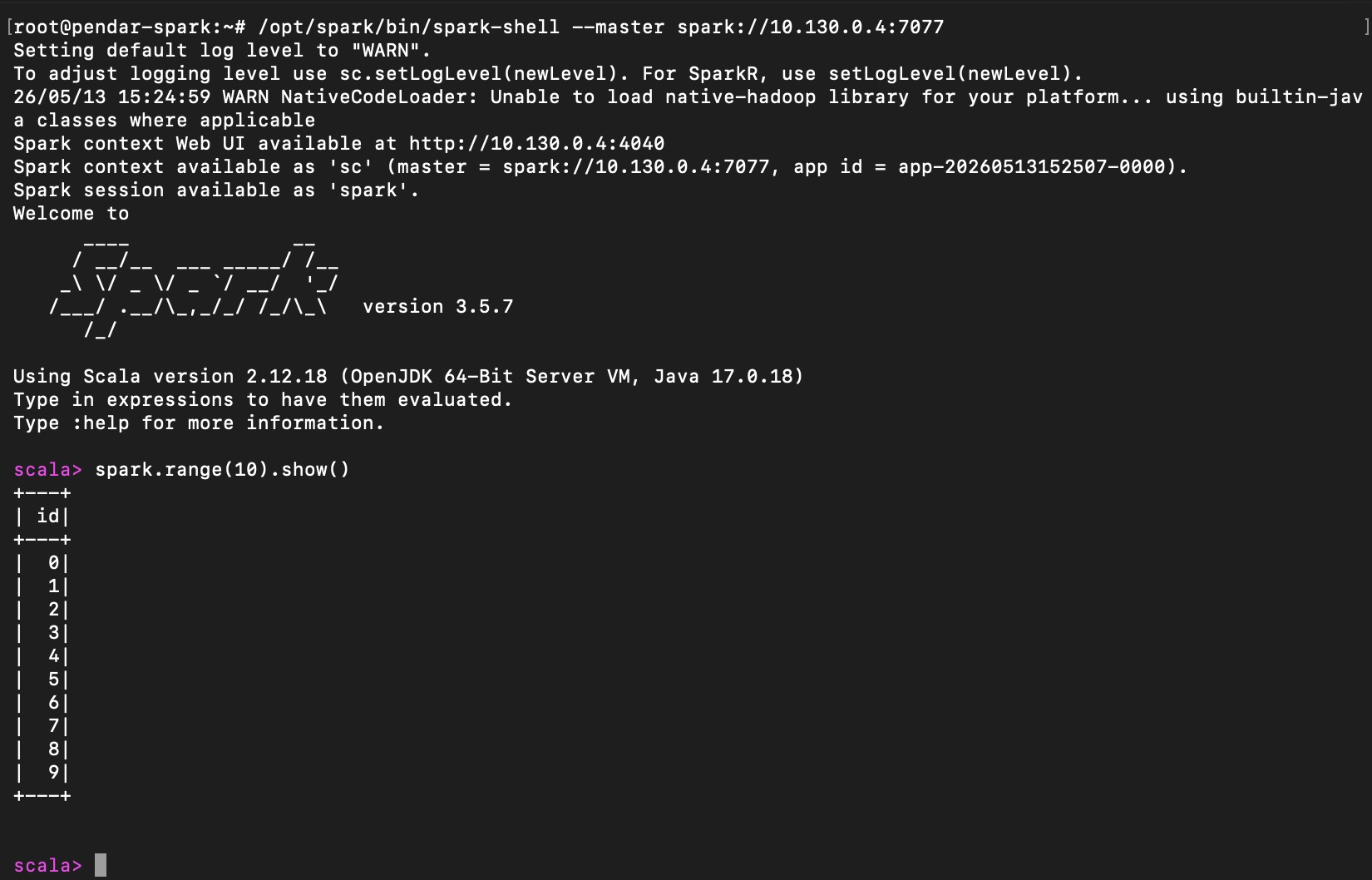 Spark range command is executed through spark shell
Execute Remote Spark Cluster Computation from Jupyter Notebook
pre-requisite
install pyspark on the jupyter notebook vm. below is the command to install under podman
enter the podman bash
podman exec -it --user root jupyter bash
install pyspark
pip install pyspark
or target the pyspark version to lower version if the jupyter notebook ran on python 3.11
pip install --no-cache-dir pyspark==3.5.1
then install JRE (java runtime environment)
apt update
apt install -y default-jre
validate if java is successfully installed with following command
java --version
 Check is java is successfully installed by check the installed java version
current network/infrastrcuture setups:
- jupyter notebook is located at 10.130.0.3
- spark master and worker is located at 10.130.0.4 (same machines)
first step is to ensure, jupyter notebook virtual machine can access spark cluster by executing telnet command from jupyter notebook VM
telnet 10.130.0.4 7077
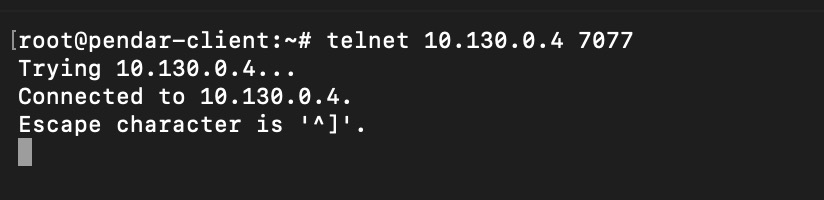 Telent connection is successfully made from client machine towards spark cluste server
next is to access the jupyter notebook, create a new notebook and paste following code
from pyspark.sql import SparkSession

spark = SparkSession.builder \
    .appName("jupyter-test") \
    .master("spark://10.130.0.4:7077") \
    .config("spark.executor.memory", "512m") \
    .config("spark.executor.cores", "1") \
    .config("spark.driver.memory", "512m") \
    .config("spark.driver.host", "10.130.0.3") \
    .config("spark.driver.bindAddress", "0.0.0.0") \
    .getOrCreate()

spark.range(10).show()
remote spark session will be initialized and allocate only 512mb of the executor memory (spark-cluster) and 512mb of the driver memory (jupyter notebook VM).
run the cell, it should also return 1..10 in sequences.
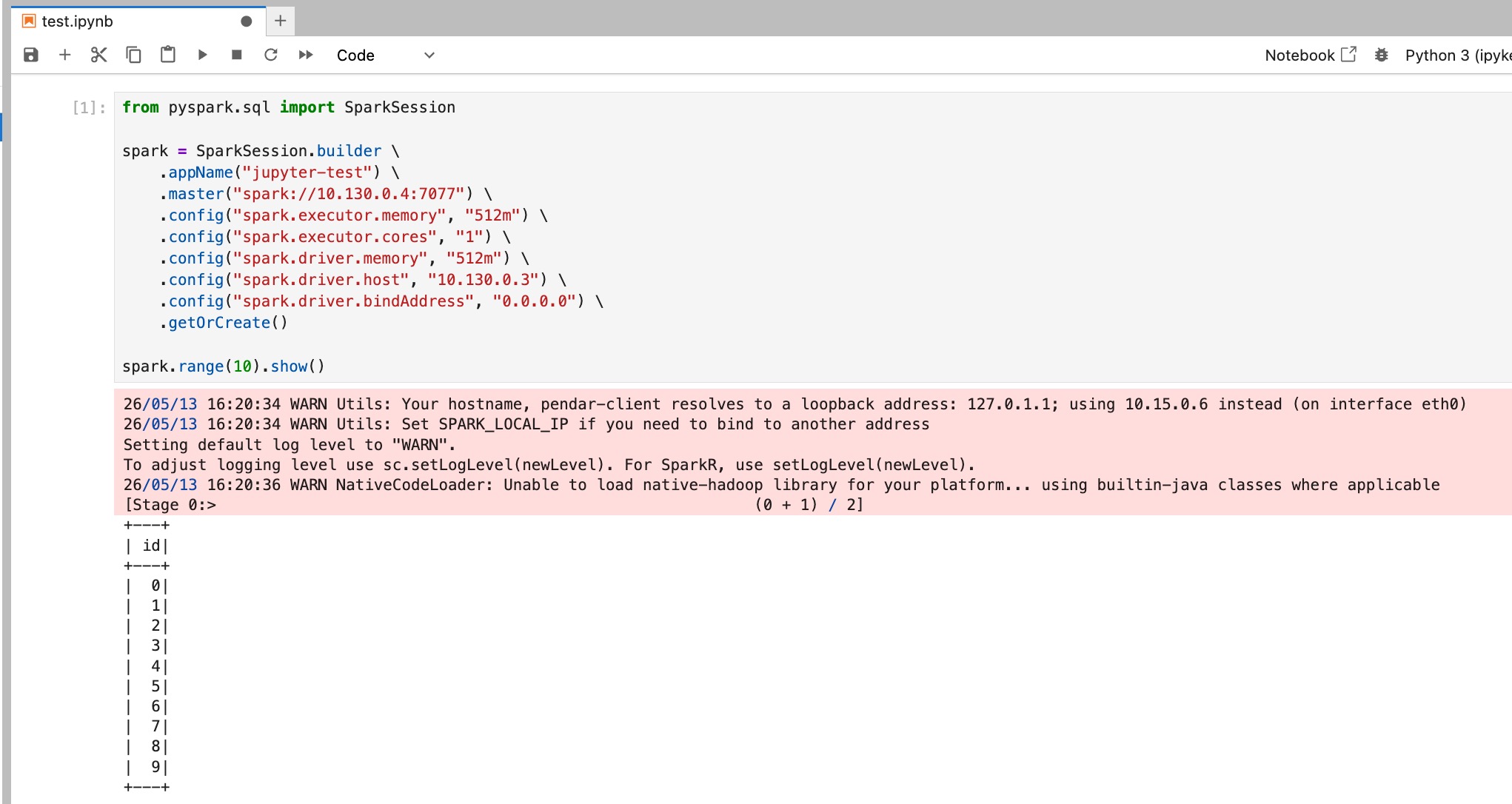 Spark query successfully ran on the spark cluster machine remotely!