
PostgreSQL is one of battle proven RDBMS (relational database management system) aside from mysql,mariadb and sql server. With proper tuning it could run on minimum virtual machine with limited memory and CPU.
Install postgresql on ubuntu server 24.04
Current server setup/landscape
- 1 gigs of ram and 1 virtual CPU
- 384mb of ram has been allocated to jupyter notebook podman
- the remaining resource +- 600mb will be fully utilized for postgresql
- jupyter notebook will only used for data visualization. all the ETL computation will be done on seperate spark cluster.
Below are the steps to install postgresql on lightweight VM with 1gb of ram and 1 virtual CPU
update ubuntu packages repository to the latest version and upgrade all old packages on the ubuntu server.
sudo apt update
sudo apt upgrade -y
install postgresql
sudo apt install -y postgresql
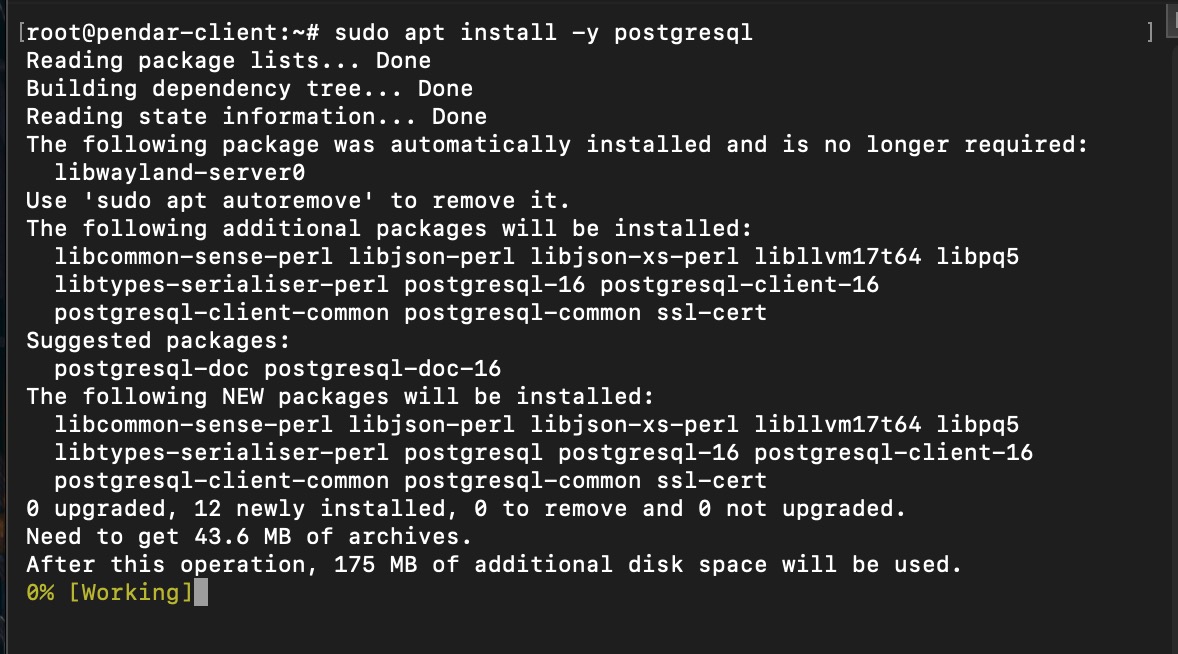 Install postgresql on ubuntu server 24.04
once the installation is completed, execute following command to verify if the postgresql is installed properly
psql --version
it should retrn the installed postgresql version on the command line interface (cli)
 Check installed postgres version
enable postgresql services
sudo systemctl enable postgresql
 Enable postgresql on ubuntu 24.04
start postgresql services
sudo systemctl start postgresql
validate if postgresql running properly (health status check)
sudo systemctl status postgresql
check on the ps
ps -ax | grep postgres
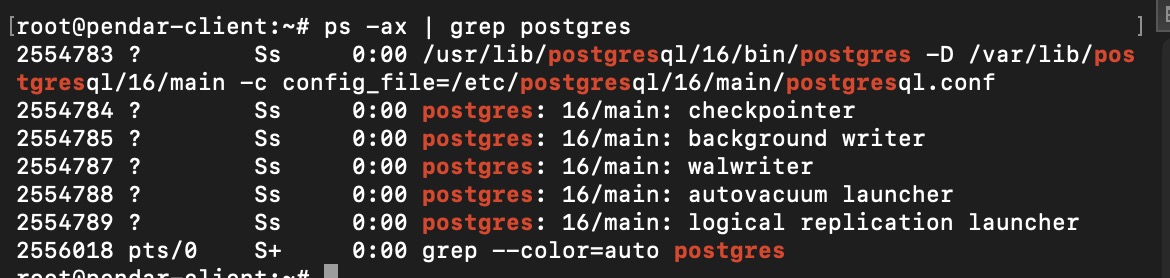 Check if postgresql is running on the daemon
check on the specific postgres services to find the actual health status (replace 16-main with the actual installed postgresql version)
sudo systemctl status postgresql@16-main
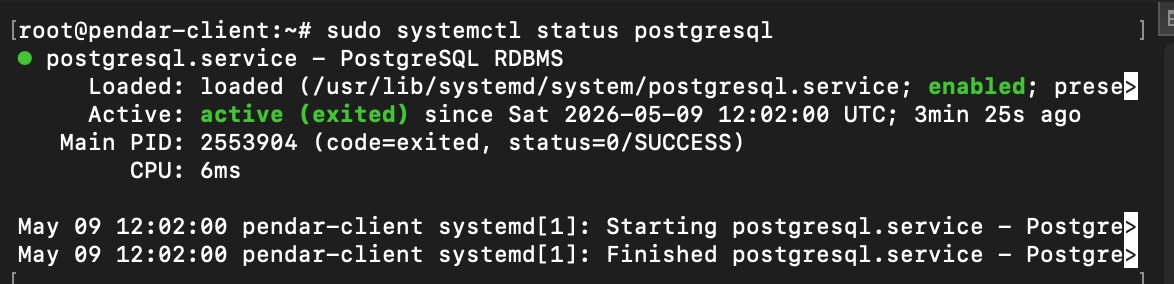 Check postgresql system status
or the health status of postgresql can also be checked on psql version command (recommended, as it show clear status of the postgresql system health)
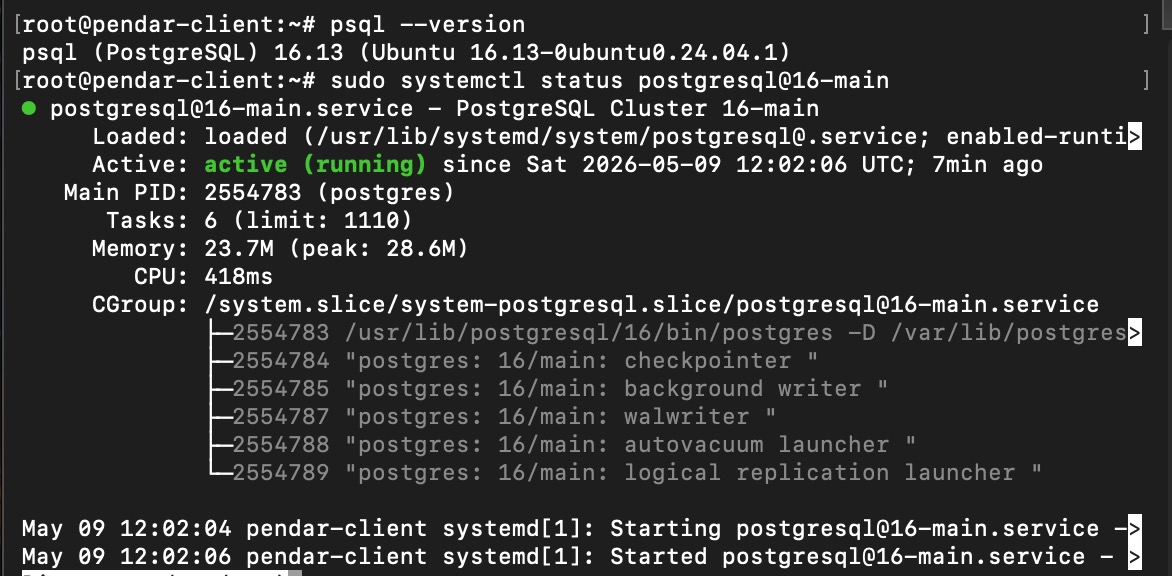 Postgresql health check via psql
set the default password for postgres user
sudo -i -u postgres
enter the postgresql shell
psql
set the default password for postgres user (root)
\password postgres
exit the shell
\q
whitelist allowed ip address to access the db (put asterisk * to allow all)
listen from all address (ip) on the postgresql.conf
listen_addresses = '*'
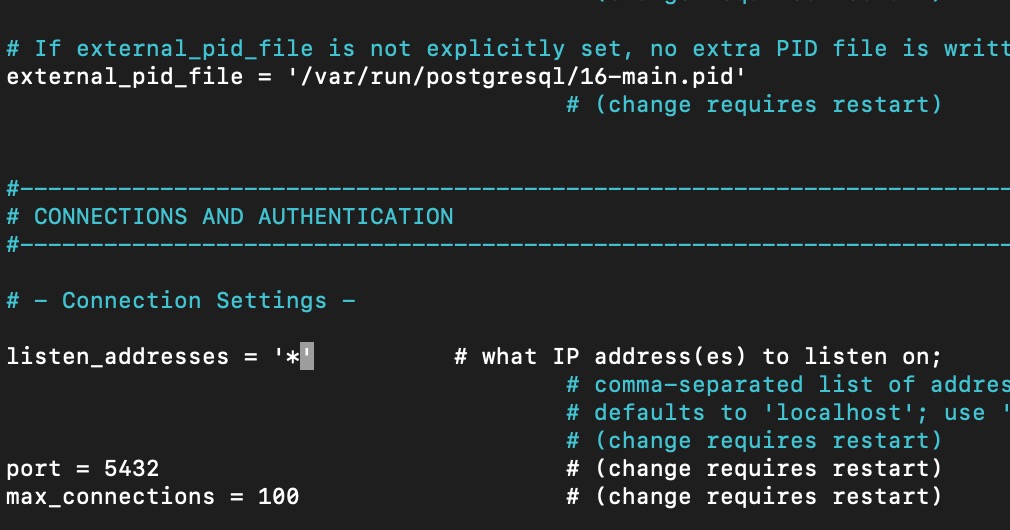 Accept incoming connection from all sources
edit the postgresql.conf using following command
sudo nano /etc/postgresql/16/main/postgresql.conf
allow for all ip on the pg_hba.conf
host all postgres 0.0.0.0/0 md5
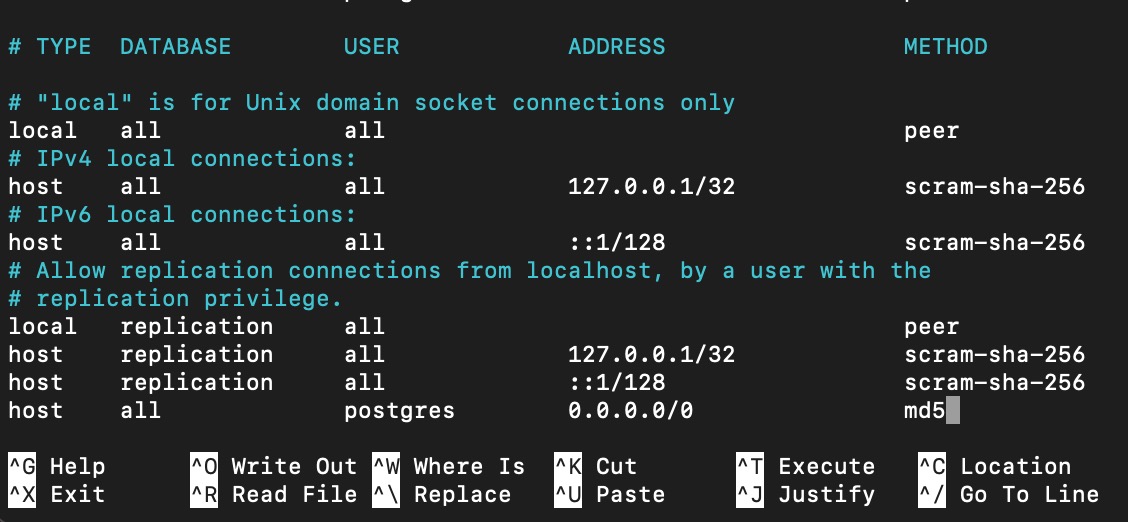 Allow all ip addresses to access postgresql
edit the pg_hba.conf using following command
sudo nano /etc/postgresql/16/main/pg_hba.conf
restart postgreql services
sudo systemctl restart postgresql
Done, at this point postgresql can be accessed remotely.
note: on production scenario, it should only to list down authorized ip address. do not allow all connection from all machines at the production server.
to stop postgresql
sudo systemctl stop postgresql
Test Connection using Postgresql client
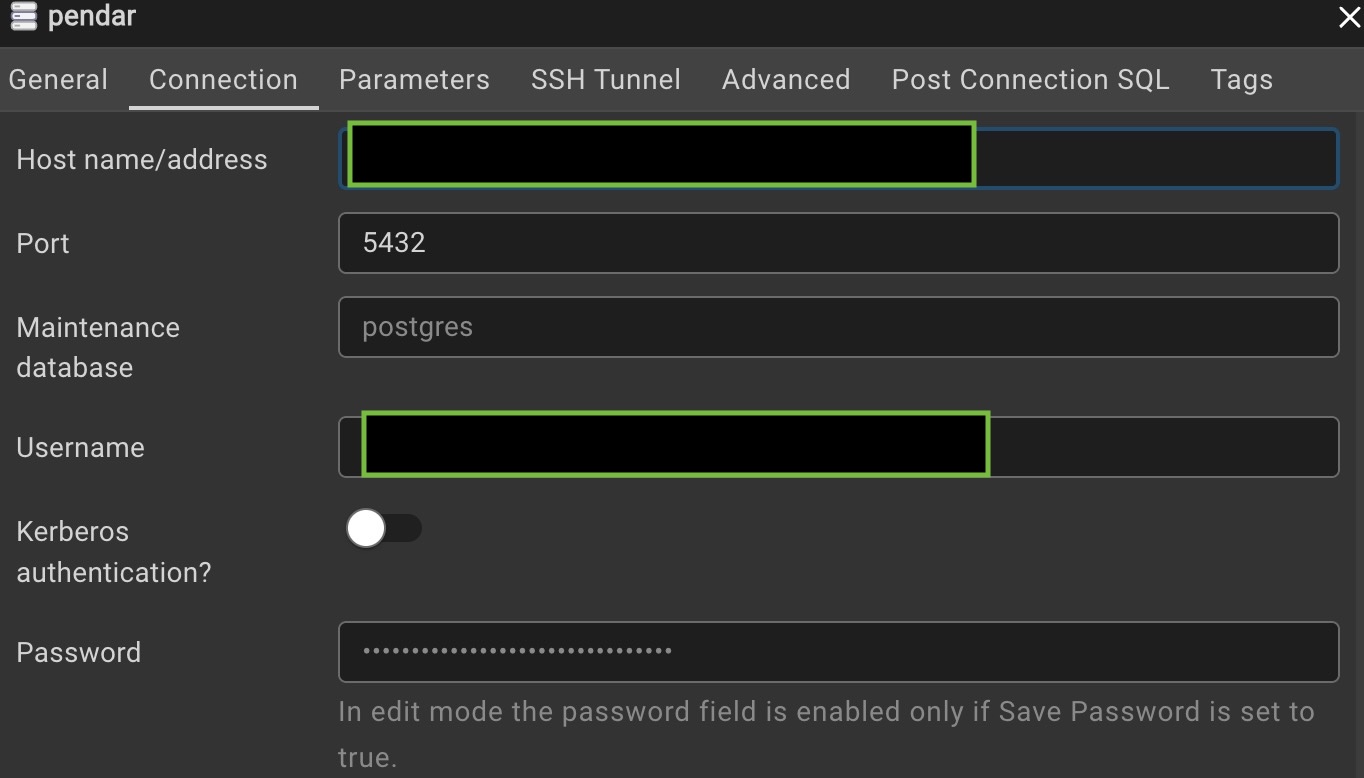 Connect to postgresql instances using pgadmin tools
The most recommended way to connect into postgresql is through pgadmin. Create a new server and add the details of the server. use postgresql as the username and the password that we configured on the previous step. keep the post as it (5432) as didnt change the port.
right click on the target database and enter following query
SELECT datname FROM pg_database;
it will listed down the available database on the postgresql instances. this is also an indication that postgresql is up and running and the connection is successfully established.
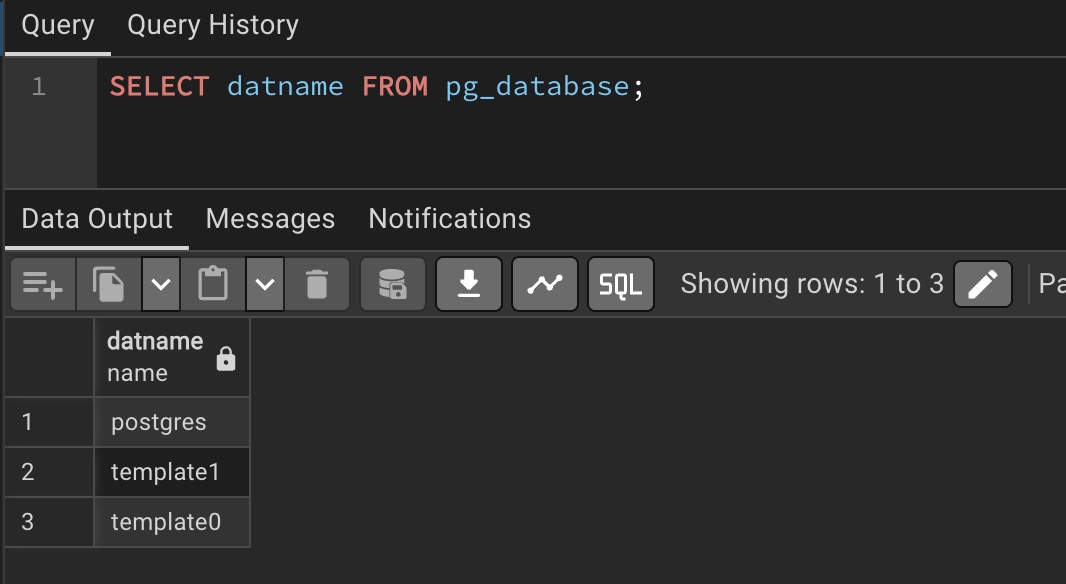 List down all available database on postgresql instances, checking the root privilages
Limit postgresql resource utilization to fit with 512mb VM specs
Memory consumption allocation can be adjusted under postgresql.conf. it also recommended to limit the number of user connection as well on that file.
below is the best practices configuration to achieve such objectives.
| config parameter | value |
|---|---|
| max_connection | 5 |
| shared_buffers | 384MB |
| work_mem | 8MB |
each of the parameter can be tuned to reduce the computing power of postgresql which resulting in the lower CPU and memory usages.
- max_connection: the more apps or user can connect to the database, the more cpu and memory consumed.
- shared_buffers: internal cache of postgresql. Smaller in memory cache will increase disk (persisted storage) I/O read but with trade off on lower memory consumption.
- work_mem: memory allocation per sql operations (JOIN, SELECT, FILTER, SORT, etc). need correct size of work_mem otherwise the sql operations will consume the disk I/O. Note that disk I/O has been stressed due to lower shared buffers.
once the file has been modified with above config, restart the postgresql server
sudo systemctl restart postgresql
execute following command to confirm if the config has been applied (after restarting the server)
sudo -u postgres psql -c "SHOW shared_buffers;"
sudo -u postgres psql -c "SHOW work_mem;"
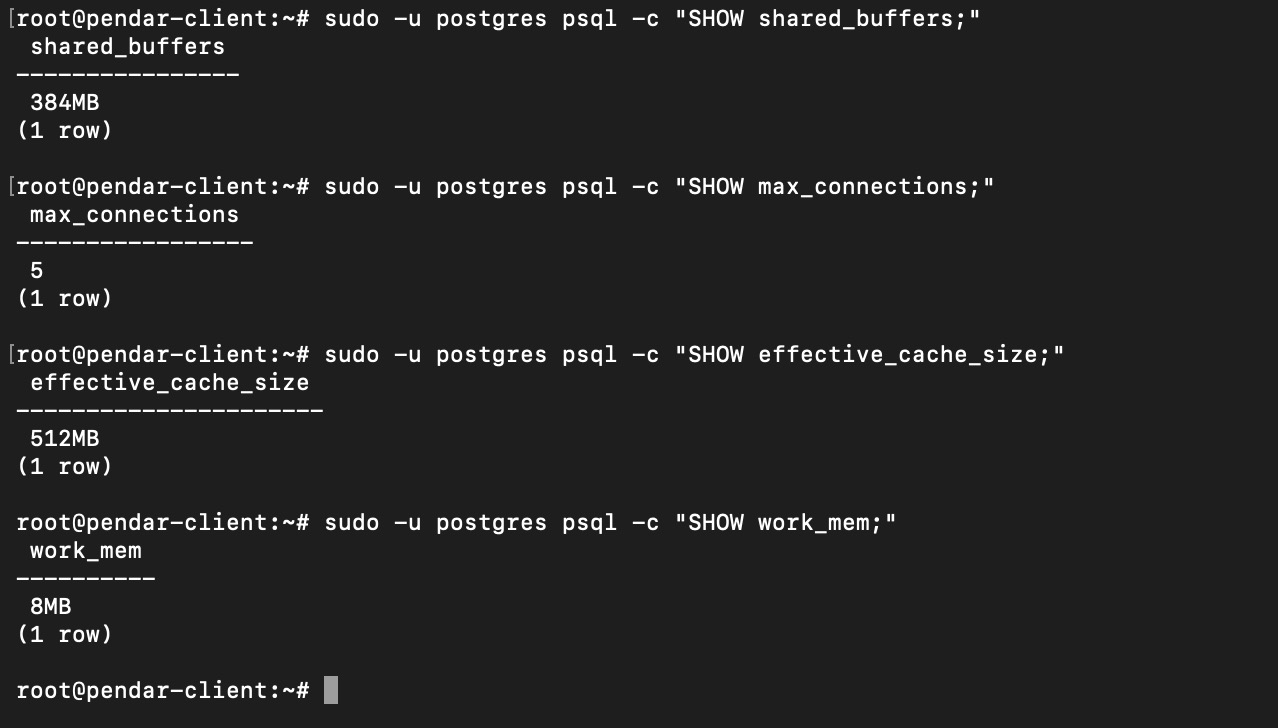 Validate configuration updates on postgresql
and its done. The only way to test whether the configuration is working properly is by doing performance test.