
Apple Silicon Replacing Intel Chip on Macbook
On late 2020, Apple introduced a new chip called as apple silicon with codename M1 as their first inhouse build SOC (System of chip) replacing intel processor that has been used on macbook for almost 15 years.
Any windows application can be ran on intel based macbook with help of bootcamp. Enabling secondary operating system to be available within the macbook. However, as of this article is written (30 march 2026), bootcamp is not available yet. Make it impossible to have windows as dualboot on apple silicon macbook.
Fortunately, there are many alternatives to run windows application on apple silicon mac such as:
- Windows Virtual Machine using vmware UTM or parallel desktop
- Compatibility Layer such as wineHQ or crossover.
Both approach has advantages and disadvantages. It is recommended to use both of them by test which approach is working for the target windows based applications
Generally, Windows VM has the best compatability but comes with performances overhead comapred with compatibility layer.
Windows VM vs Compatability Layer
Below are the comparison between windows VM and compatibility layer to run windows based application.
| Factor | Windows Virtual Machine | Compability Layer |
|---|---|---|
| Comptability | Best. Support almost all windows app | Inferior. |
| Performance | Higher resource consumption overhead because it run an OS inside an OS (MacOS) |
Lower resource consumption |
| Best Usecases | Offices, Engineering Application | Gaming |
Running Windows Application Using WineHQ
WineHQ is an opensource compatability layer which support various operating system including Linux, BSD and macOS with apple silicon.
It support tons of windows application. The list of supported application can be found on below links
https://appdb.winehq.org/
Below are the step by step to install winqHQ on macOS.
Note: for better compatability(support more apps), it is recommended to use crossover which based on winehq especially for gaming purposes.
Download & Install WineHQ
Go to winehq websites and find the download section or simply click on following links
https://gitlab.winehq.org/wine/wine/-/wikis/Download
on the download pages, scrolldown until you find the download links for macOS.
https://gitlab.winehq.org/wine/wine/-/wikis/MacOS
There are various way to install winehq. Most recommended approach is through brew as we dont have to build it from the sources code.
Ensure your macOS has brew installed, if not use following command to install homebew
/bin/bash -c "$(curl -fsSL https://raw.githubusercontent.com/Homebrew/install/HEAD/install.sh)"
check if brew is sucessfully installed
brew --version
if brew is installed properly, it should return the brew version on the console.
(base) deganandaferdian@degananda ~ % brew --version
Homebrew 5.1.1
(base) deganandaferdian@degananda ~ %
Install wineHQ using brew
brew install --cask --no-quarantine wine-stable
above command will install latest stable version of winehq .
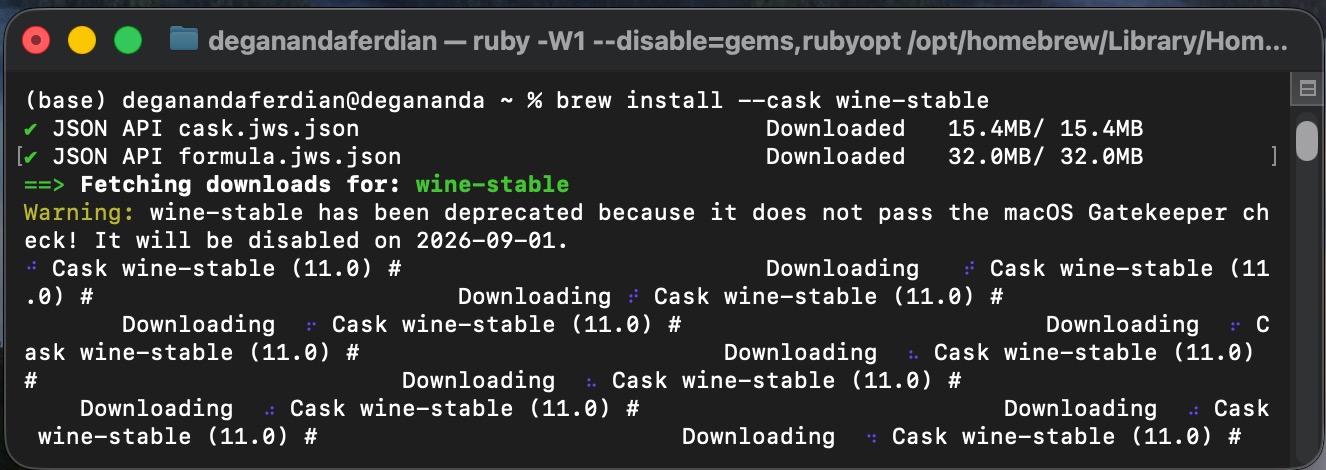 Install wine on mac OS through brew
note that brew will also automatically update and renew other packages which was previously installed using brew. Hence, it will take sometime
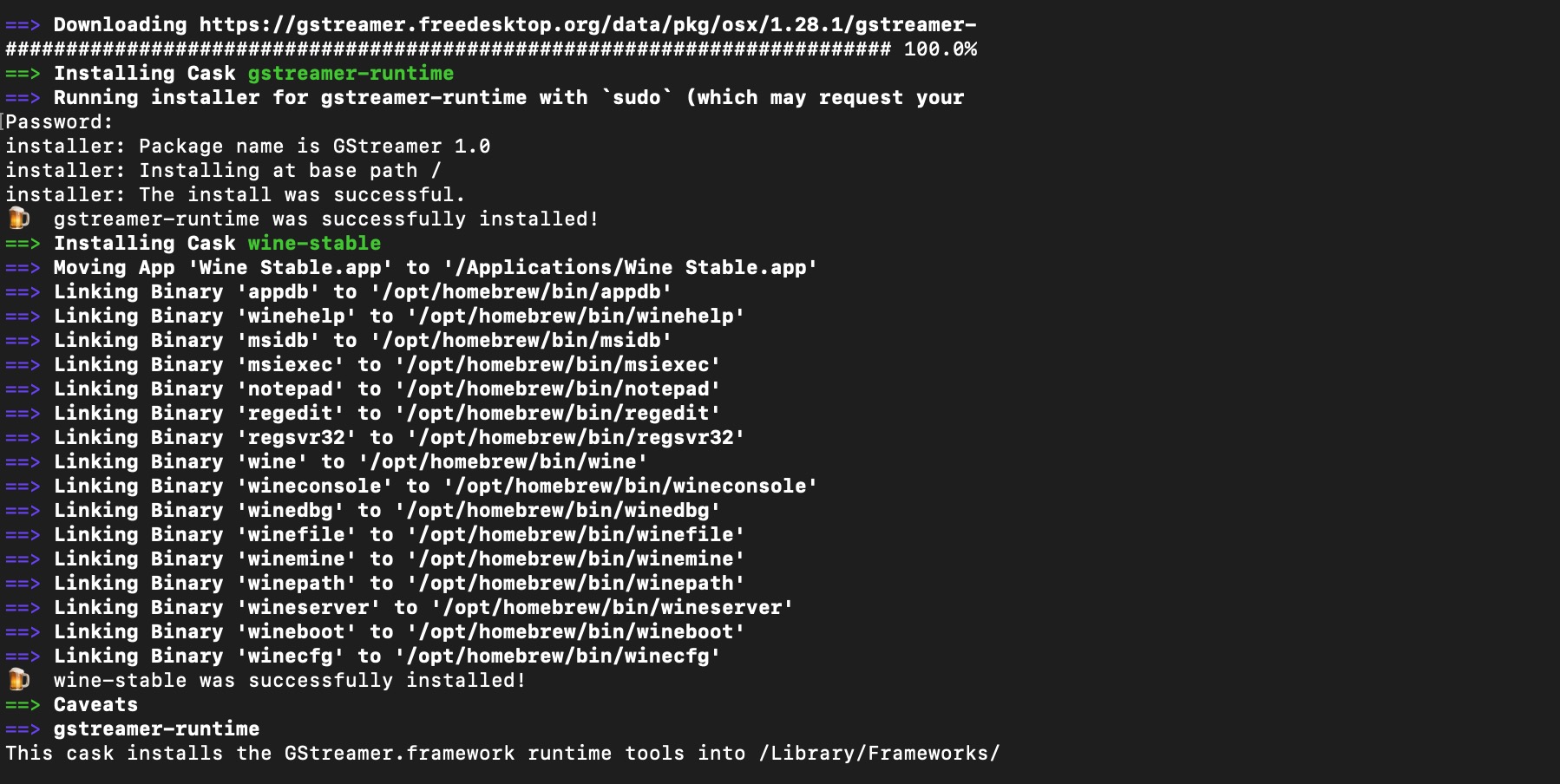 Brew automatic updates of brew based old packages
once the wine instllation is completed, check it using following command
wine --version
it should return the version of wine installed on the system
 Check wine version on the CLI or terminal
Install windows application on the Bottle
create wine bottle. Bottle is like a container which will store all the neccesary windows system files and has compatability with arm based mac os. Choose the latest wine (on this case is wine version 12 with sub version of 23.7.1)
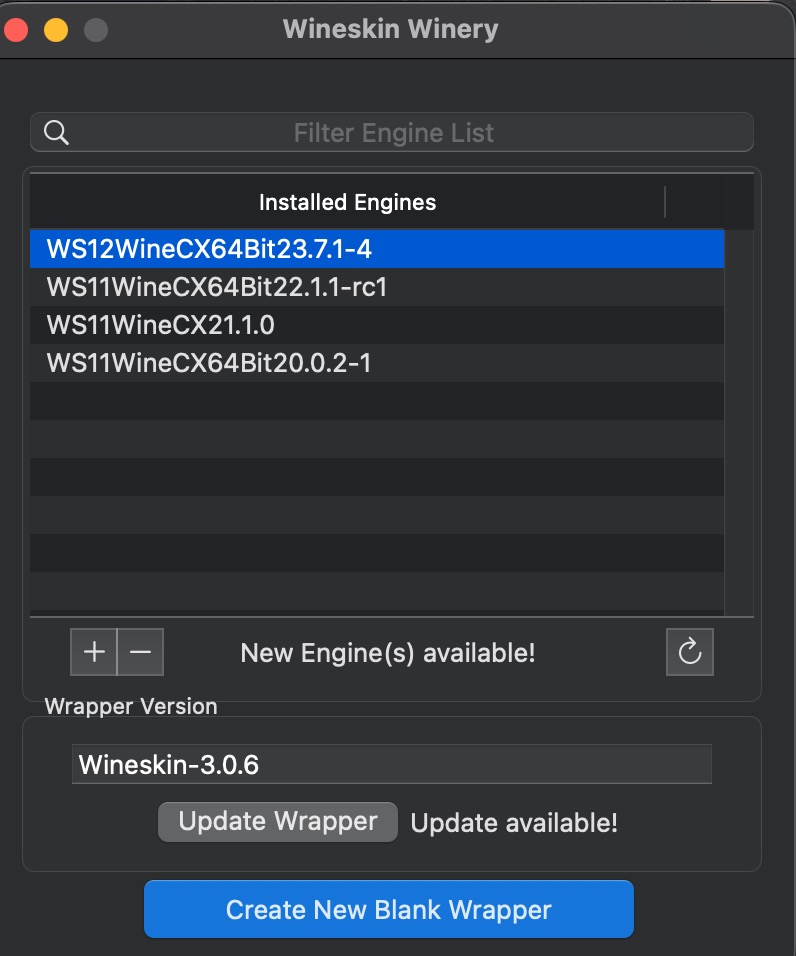
enter the bottle name. It is recommended to put the application name as the bottle name to avoid confusion later on
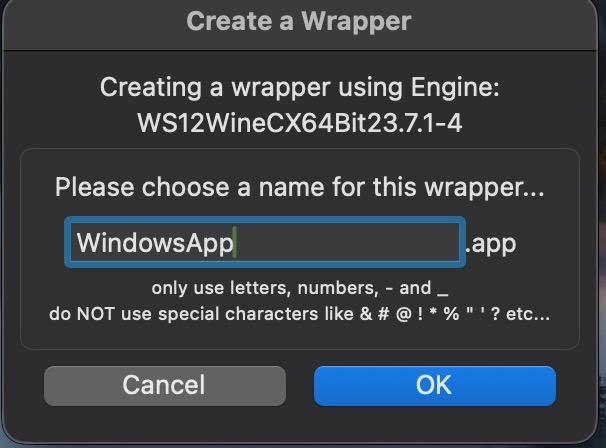 Specify the bottle name, use the program name so it will be trackable in the future
Choose install software menu and choose the setup executable
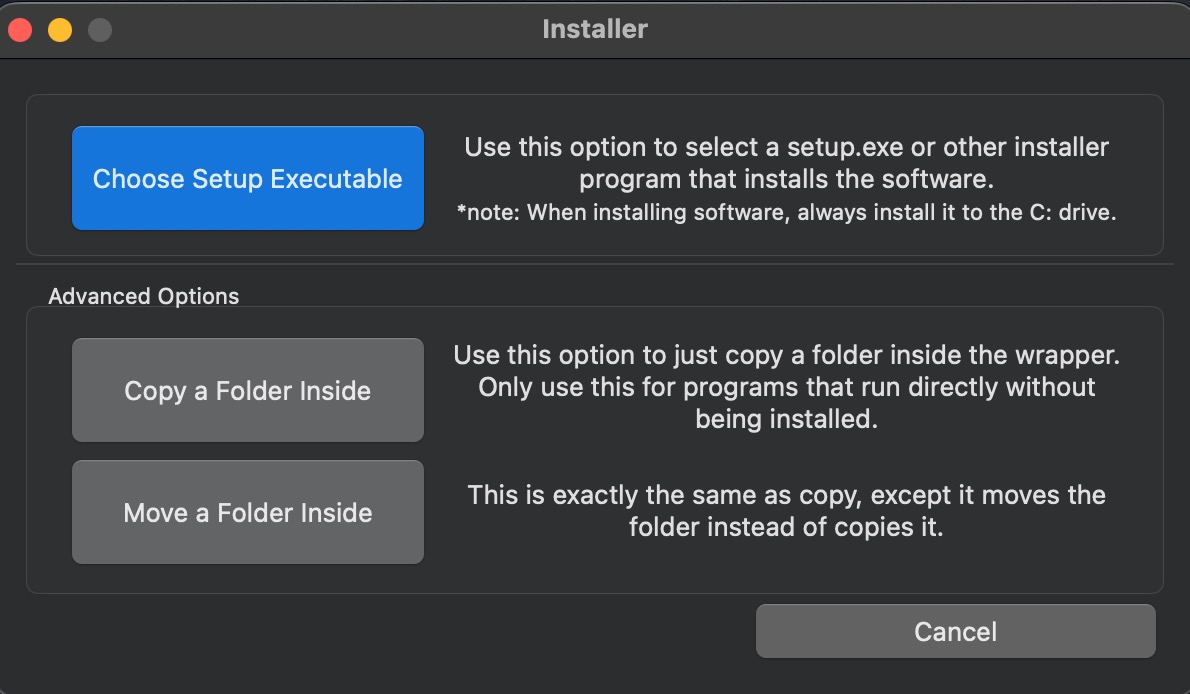 Choose setup exectuable menu on the wizard
select the executable files or portable program files from the directory.
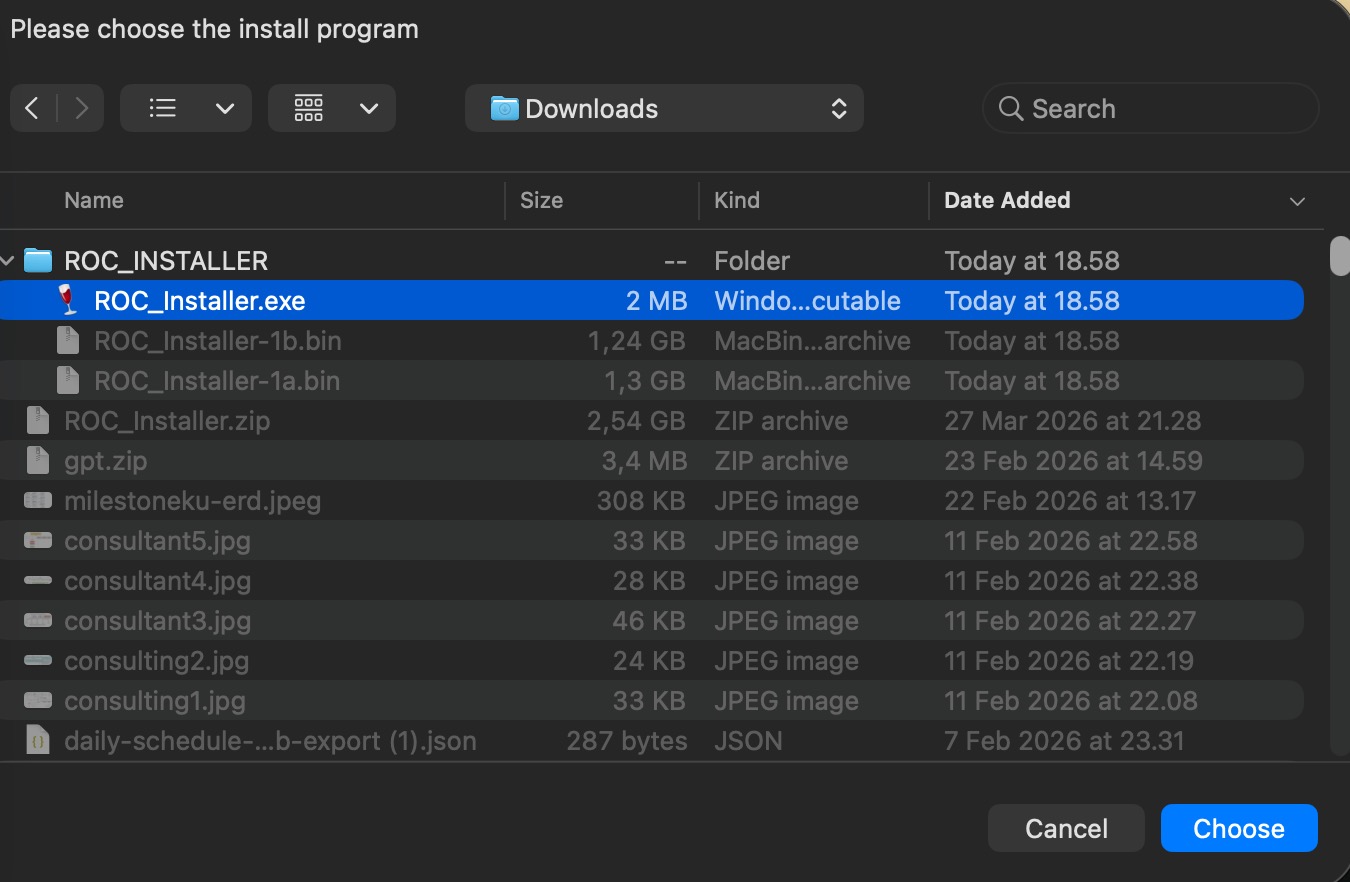 Find and choose the target program executable file or the portable program file
wait until the bottle creation process is completed & Follow the installation wizard of the windows program
 Windows .exe program is successfully ran
Its done & enjoy the wine on mac!